Set up the AI model that runs your reviews
Add, verify and activate the AI model for your Pullwise workspace, using an Anthropic, OpenAI or Google Gemini key, or a self-hosted model.
Pullwise sends each merge request’s diff to the active AI provider. Setting one up takes three steps:
- Add key: save your API key (and optionally a model).
- Verify: Pullwise checks the key works.
- Make active: reviews start using this provider.
Only a verified provider can be made active. Not sure which provider to choose? See choose an AI model.
Open the AI screen
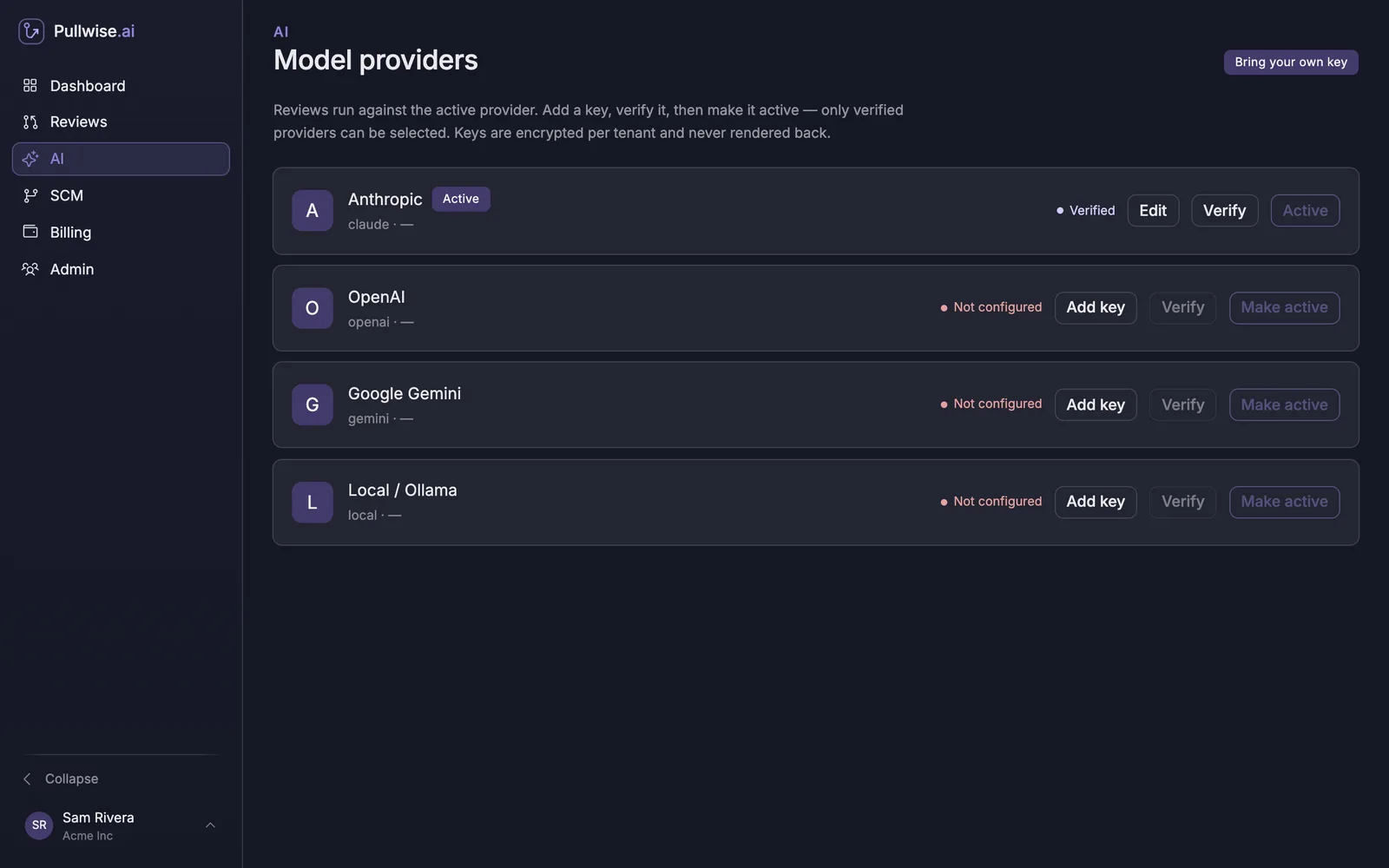
Select AI in the sidebar. You’ll see Model providers with a card for each provider. The badge at the top right shows your mode: Bring your own key, or Platform mode if your workspace uses the hosted Pullwise model.
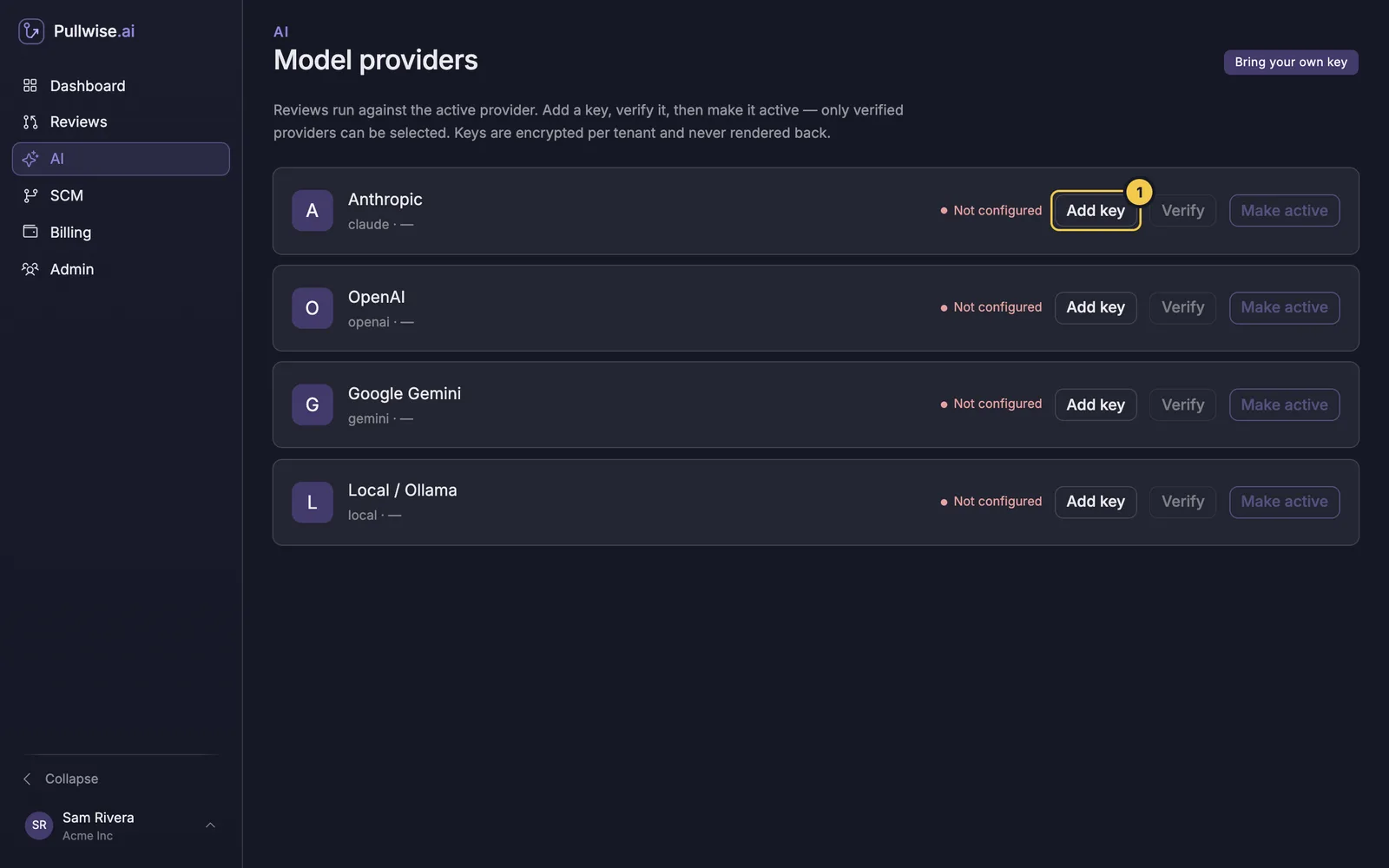
Each card shows its status:
| Status | Meaning |
|---|---|
| Not configured | No key saved yet. |
| Not verified | A key is saved but hasn’t been checked, or the settings changed since it was. |
| Verified | Pullwise has checked the key works. It can now be made active. |
Step 1: Add your key
-
On the provider’s card, select Add key (1).
-
Paste your API key.
-
Optionally enter a Model. Leave it blank to use the default:
Provider Default model Anthropic claude-sonnet-4-5OpenAI gpt-5Google Gemini gemini-2.5-proLocal / Ollama qwen2.5-coder:7b -
Select Save.
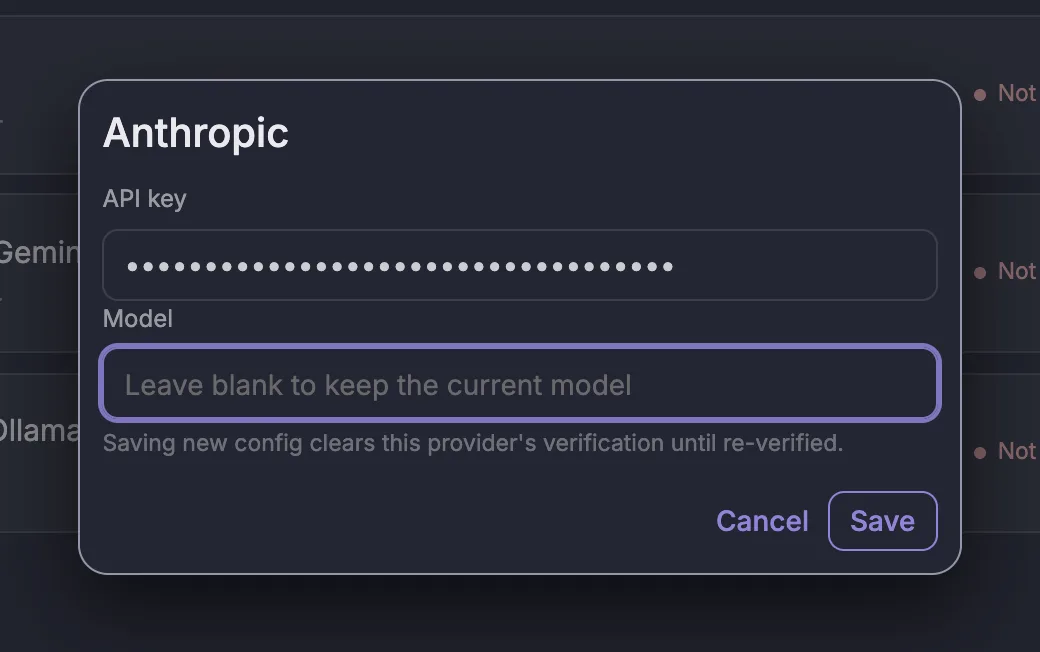
Keys are encrypted and never shown again. Later, select Edit to change the model or replace the key. Leave the key field blank to keep the current one.
Step 2: Verify the key
Select Verify (2). Pullwise makes a small test call to the provider.
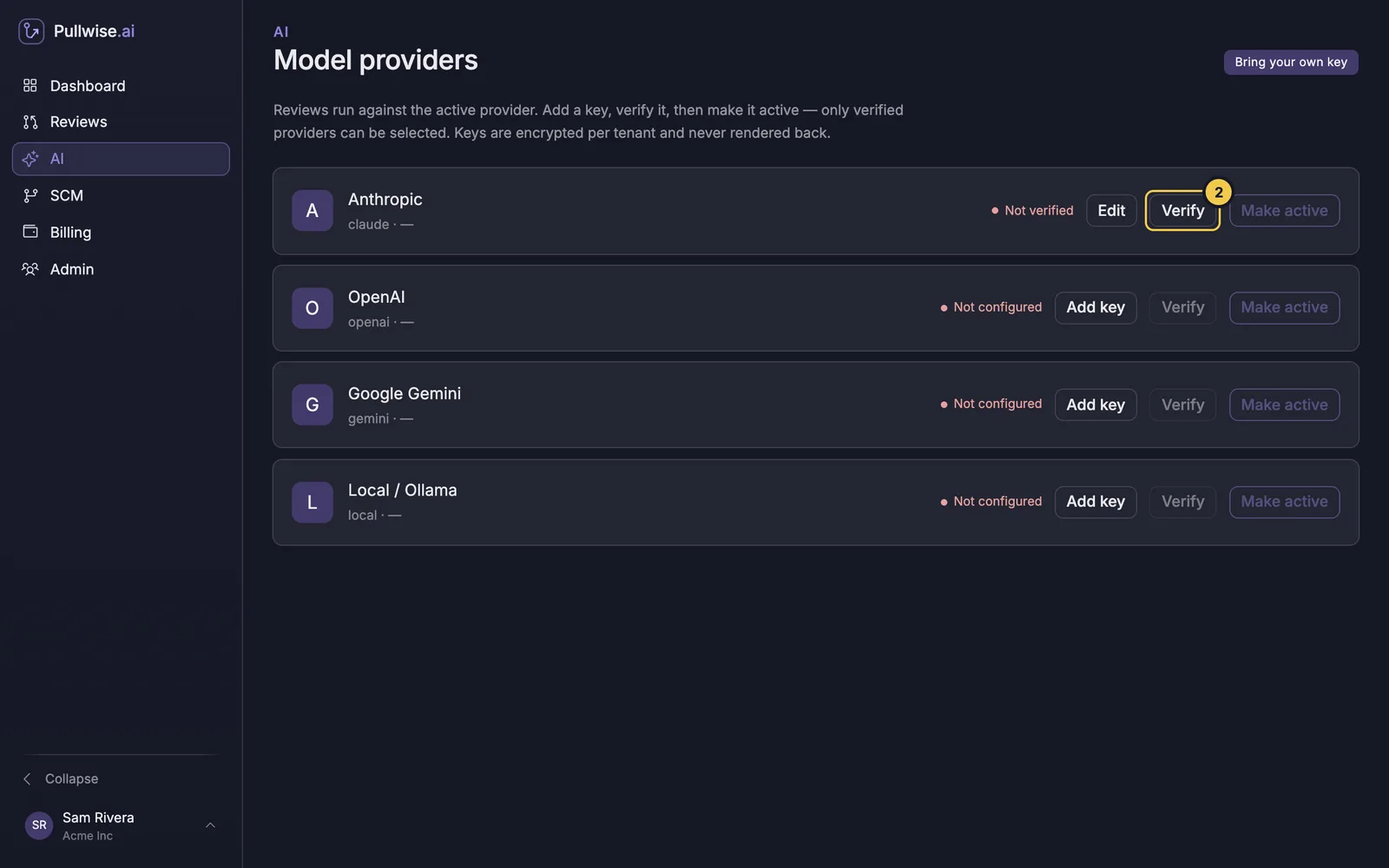
If verification fails, an error appears at the top of the page with the provider’s message, for example an invalid key or no access to the model.
Step 3: Make it active
Once the card says Verified, select Make active (3).
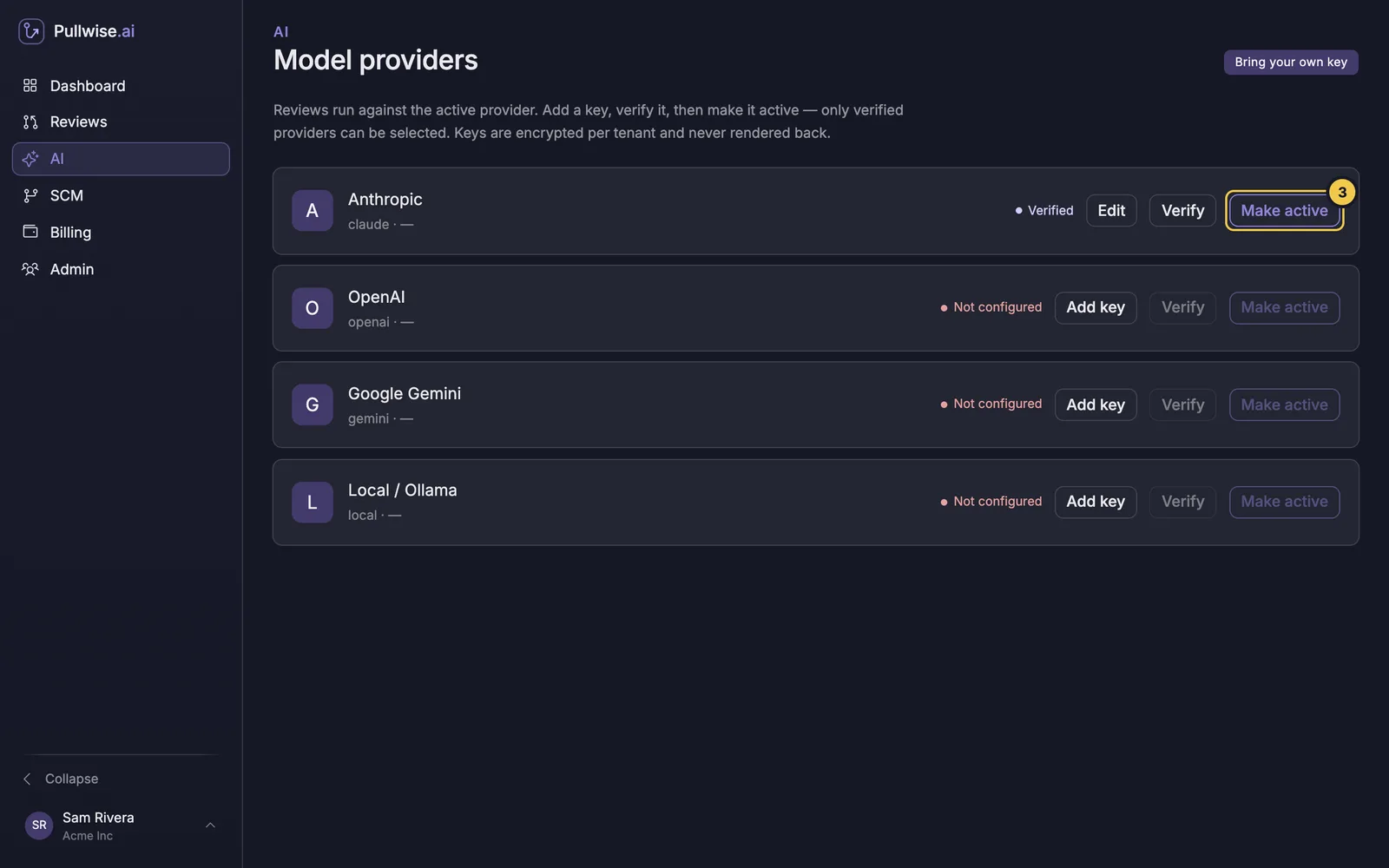
The button changes to Active. From now on, every review uses this provider.
Use a self-hosted model
To keep code on your own network, run an OpenAI-compatible server such as Ollama, LM Studio, vLLM or llama.cpp. Then:
- On the Local / Ollama card, select Add key.
- Enter the Base URL, such as
https://ollama.acme.internal/v1. - Add an API key if your server needs one. Otherwise leave it blank.
- Enter the Model, such as
qwen2.5-coder:7b. - Save, then Verify and Make active as above.
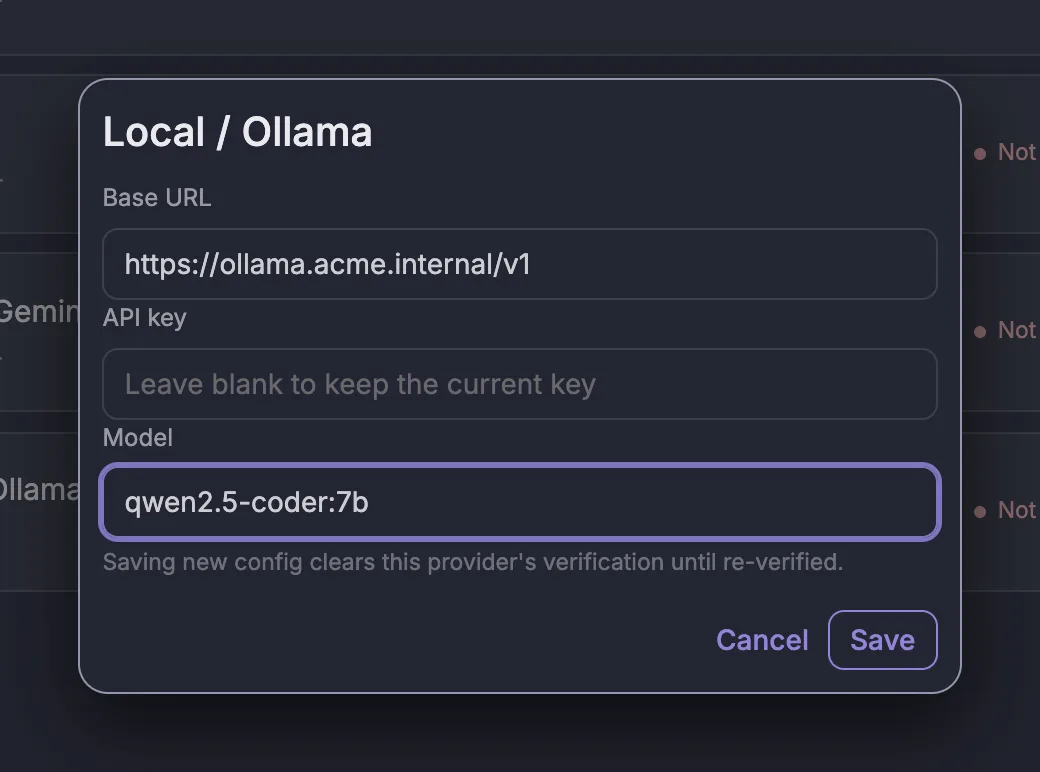
Pullwise must be able to reach the URL over HTTPS. See self-hosted models for setup and sizing.
Switching providers
Add and verify the new provider, then select Make active on it. The old provider keeps its key, so you can switch back at any time.
Use the hosted Pullwise model
With Pullwise AI you don’t manage keys at all: we run the model and reviews use credits. The badge shows Platform mode when it’s on. To switch your workspace over, contact support.
If something goes wrong
| Problem | What to do |
|---|---|
| Make active is greyed out | The provider isn’t verified. Select Verify first. |
| Verification fails | Check the key was copied in full, has credit or billing set up with the provider, and can use the model you named. |
| The status went back to Not verified | You saved new settings. Select Verify again. |
| A local model fails to verify | Check the Base URL ends in /v1 and is reachable from the internet over HTTPS. |
Next
Stuck? Ask the assistant, check troubleshooting or contact support.