Manage your account and security
View your Pullwise account details, change your password, sign out, and leave or close a workspace.
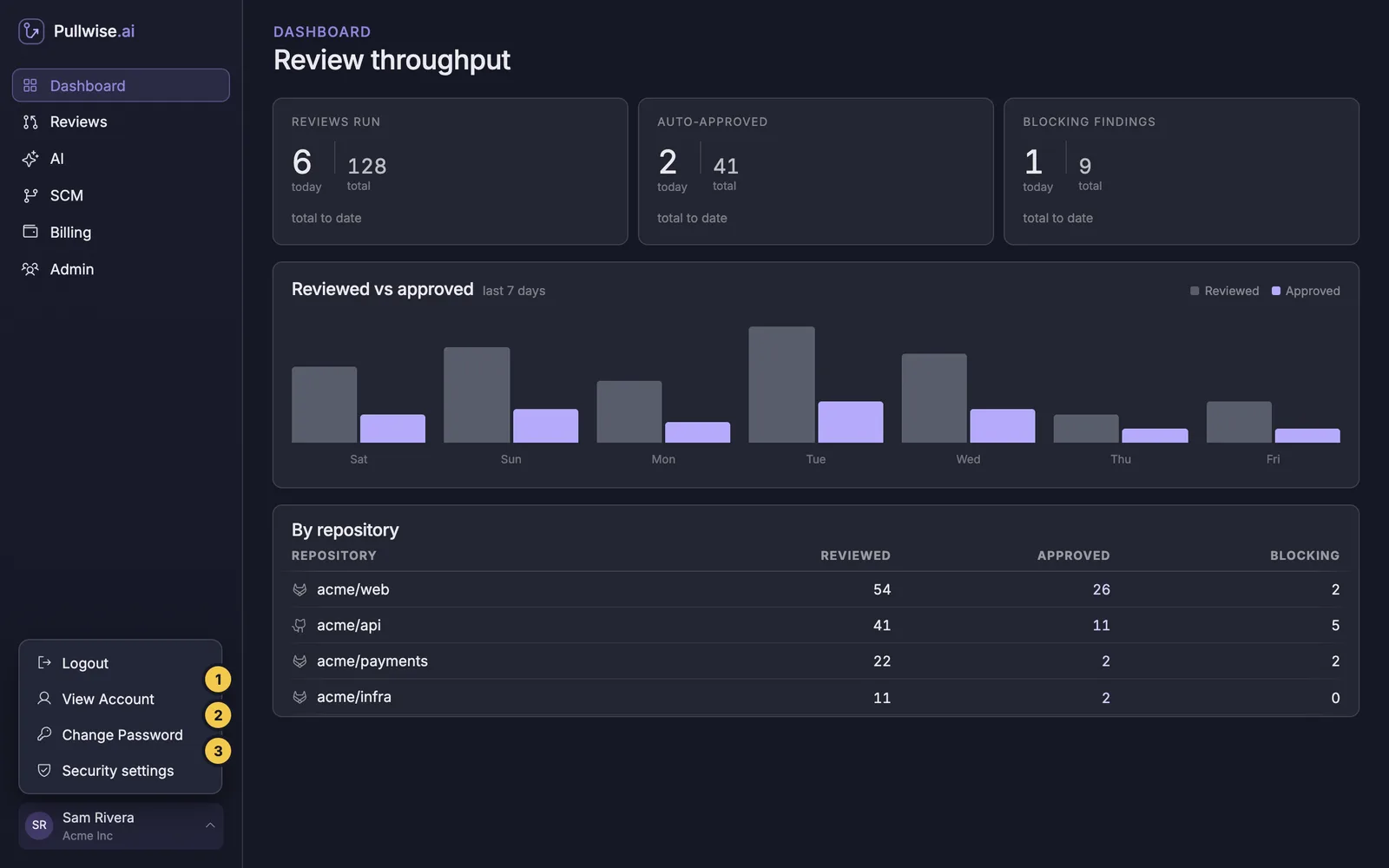
Your account page has three tabs: Account, Password and Security. Open them from the account menu at the bottom of the sidebar.
View your account
Choose View Account (1). The Account tab shows your Name, Email and Role in this workspace.
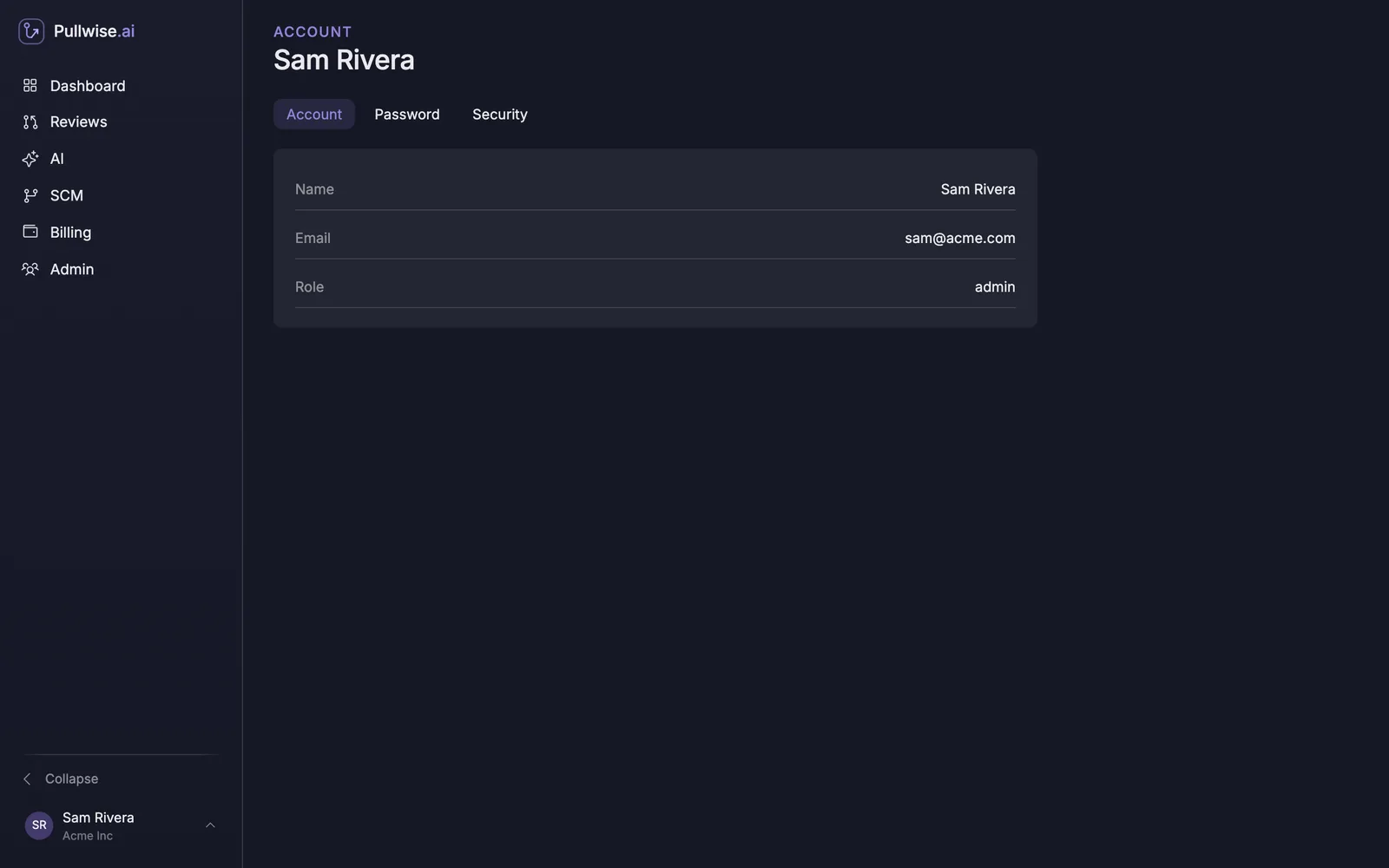
To change your role, ask a workspace admin. See invite your team.
Change your password
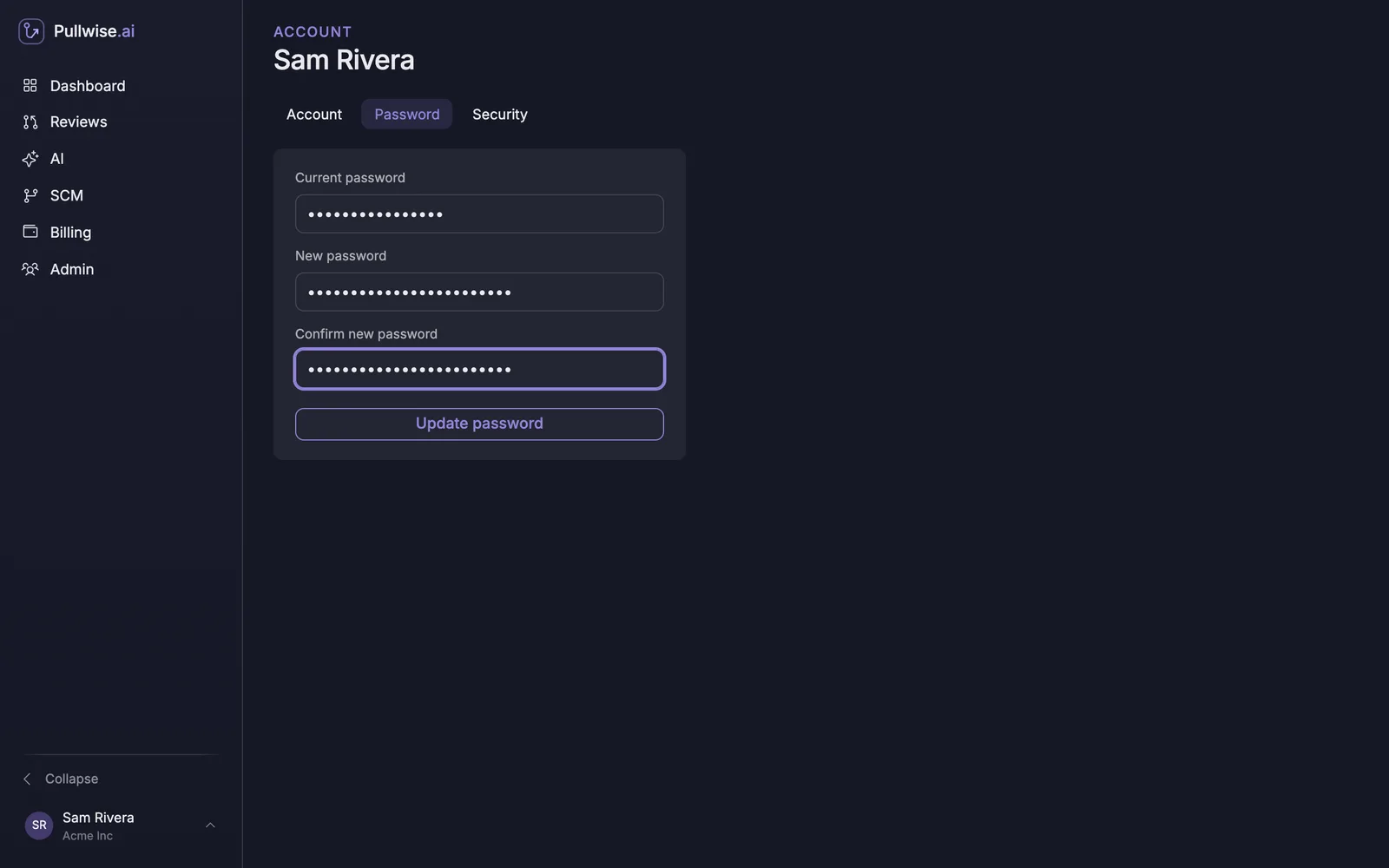
- Choose Change Password (2), or open the Password tab.
- Enter your Current password.
- Enter a New password of at least 8 characters, and type it again to confirm.
- Select Update password. You’ll see Password updated.
Sign out
- Choose Logout in the account menu, or
- Open Security settings (3) and select Sign out under Sessions.
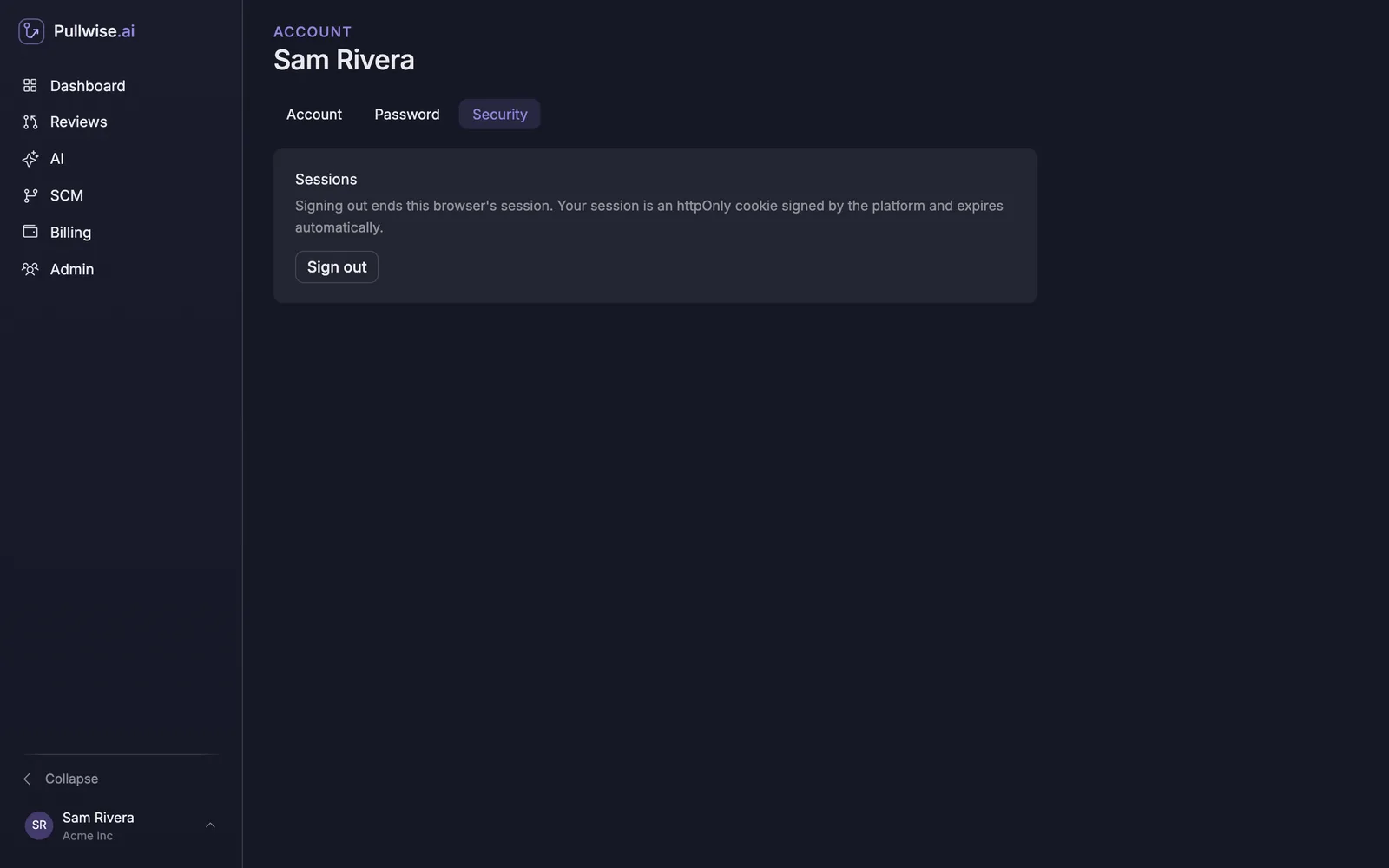
Signing out ends the session in this browser only. Sessions also end on their own after 8 hours. Always sign out on shared computers.
Leave a workspace
Ask an admin to disable your account in Admin. Your past reviews stay in the workspace’s history.
Close a workspace
To delete a workspace and its data:
- Remove the Pullwise webhooks from your repositories.
- Revoke the access tokens you created for Pullwise, and the API keys if you used your own.
- As an admin, email support@pullwise.ai from the address on your account, naming the workspace.
To get a copy of your personal data, email the same address. See our privacy policy for your rights.
If something goes wrong
| Problem | What to do |
|---|---|
| Update password fails | Check your current password, and that the two new ones match and are at least 8 characters. |
| Forgotten password | There’s no self-service reset yet. Ask an admin, or contact support. |
| Signed out unexpectedly | Sessions last 8 hours. Sign in again. |
You’re all set
That’s the full set of guides. If you get stuck, try troubleshooting, ask the assistant (bottom right), or contact support.
Stuck? Ask the assistant, check troubleshooting or contact support.