Turn on gated auto-approve
Let Pullwise approve low-risk merge requests automatically, the five checks it must pass first, and how to keep a person in the loop.
Auto-approve is off by default. When it’s off, Pullwise only comments. You can switch it on for each platform separately, for example on GitLab but not GitHub.
When Pullwise approves
Only when all five checks pass:
- Auto-approve is on for that platform.
- The model recommends approval.
- The whole diff was reviewed. Diffs over the size limit are never approved.
- The risk is low or medium, not high.
- There are no blocker or high findings.
If any check fails, Pullwise comments without approving, and the outcome in Reviews is Advisory. Pullwise never merges.
Before you switch it on
The access token must be allowed to approve:
| Platform | Requirement |
|---|---|
| GitLab | The token’s role is Maintainer, or an approval rule includes the token’s bot user. |
| GitHub | The token’s account can submit pull request reviews (Pull requests: Read and write). |
| Bitbucket | The token has Pull requests: Write. |
Switch it on
- Open SCM.
- Under the platform’s card, find Auto-approve reviews.
- Switch it on (1).
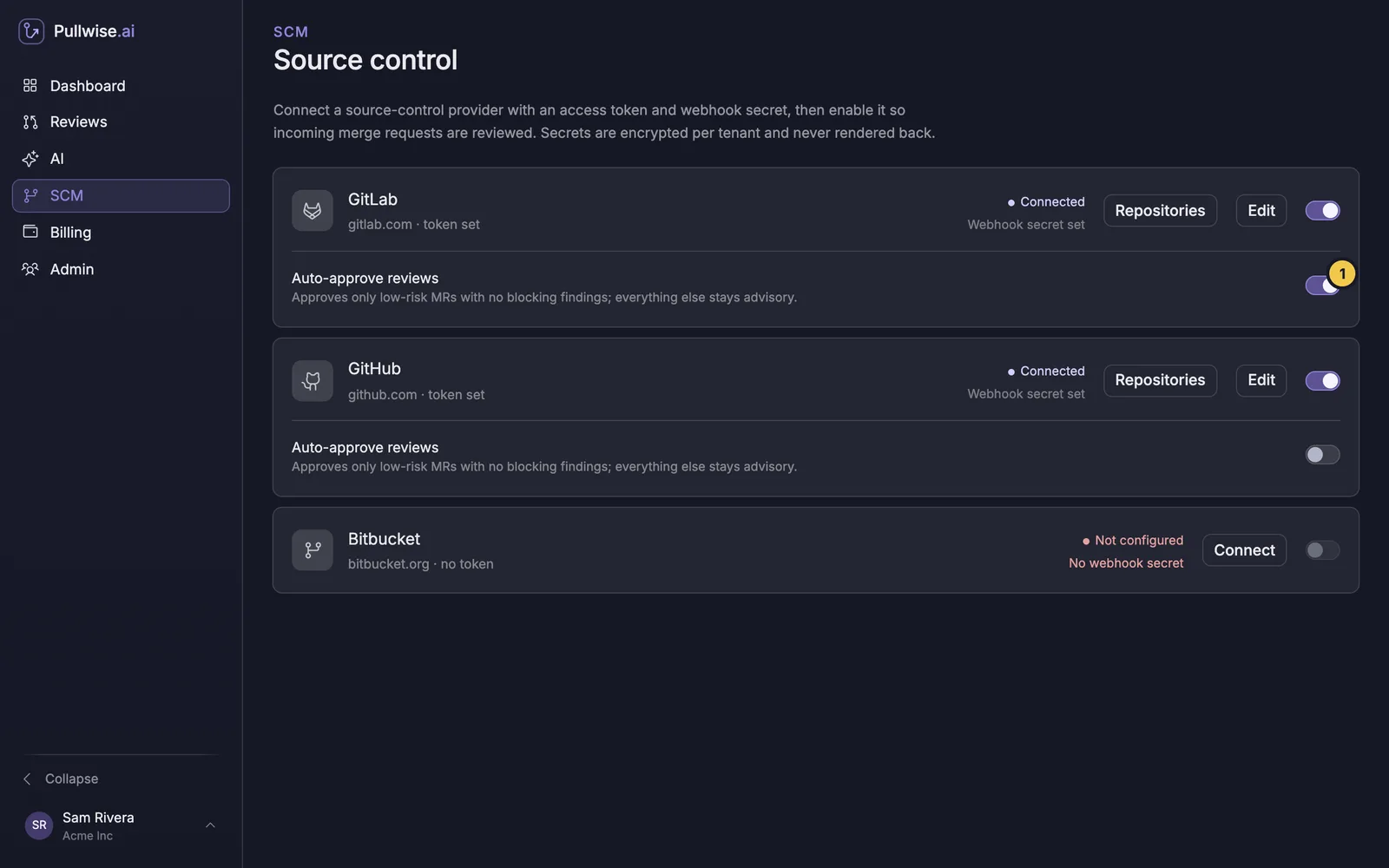
The change takes effect on the next review.
Keep a person in the loop
Pullwise’s approval counts like anyone else’s, so use your platform’s own rules to decide how much it counts:
- Require two approvals. One can come from Pullwise, and a person must always add the other.
- Code owners. Require a code owner’s approval for sensitive paths such as authentication, payments or infrastructure.
- Protected branches. Keep merging into
mainrestricted as it is today.
Audit it
In Reviews, select Approved to see every merge request Pullwise approved. Open any of them to see why. You can switch auto-approve off at any time, and it stops on the next review.
If something goes wrong
| Problem | What to do |
|---|---|
| Nothing is ever approved | Check the token can approve (see the table above). Check the merge requests are passing all five checks: open one in Reviews. |
| An approval appeared on a change you’d have stopped | Switch auto-approve off, and require a second human approval in your platform. Share the review with support so we can look at it. |
Next
Stuck? Ask the assistant, check troubleshooting or contact support.