Connect your source control
How Pullwise connects to GitLab, GitHub and Bitbucket, what the SCM screen shows, and what you need before connecting a platform.
This guide explains how the connection works and what the SCM screen shows. The next three guides walk through each platform step by step.
How a review runs
- 1Your platform
An MR is opened or updated. GitLab, GitHub or Bitbucket calls the Pullwise webhook.
- 2Verify
Pullwise checks the webhook secret or signature for your workspace.
- 3Fetch
It reads the diff, title and description with your access token.
- 4Mask secrets
Keys, tokens and passwords in the diff are replaced with placeholders.
- 5Review
Your active AI model reviews the change.
- 6Post
One comment on the MR, updated in place on each push. Optionally, approval.
Pullwise needs two things from your platform:
- An access token, so it can read merge requests and post its review comment.
- A webhook, so your platform tells Pullwise when a merge request opens or changes.
A webhook secret links the two. You make up a long random string and enter it in Pullwise and in your platform’s webhook. Pullwise rejects any webhook call that doesn’t carry it, so nobody else can trigger reviews in your workspace.
The SCM screen
Select SCM in the sidebar. There’s a card for each platform.
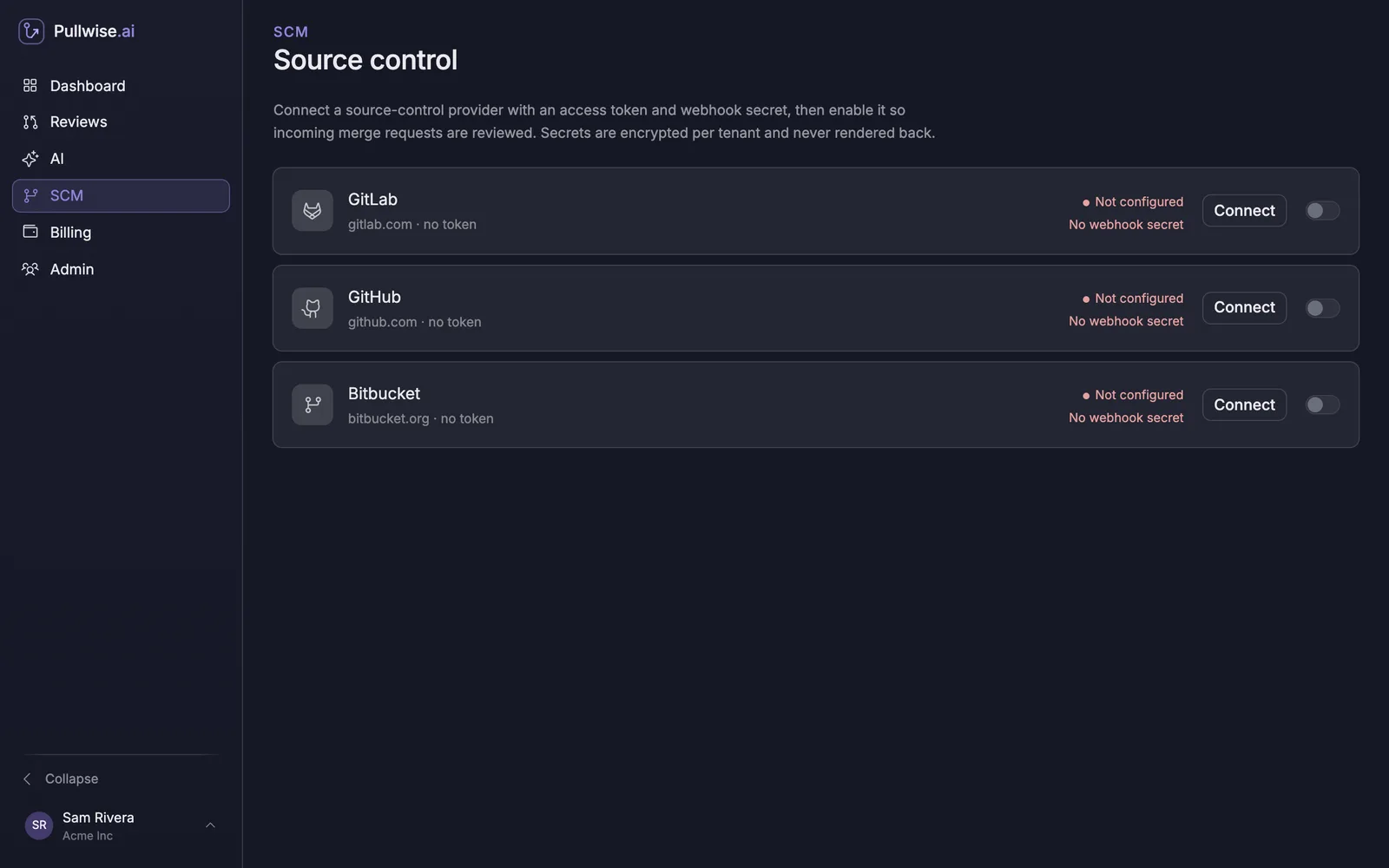
Each card shows:
- The API address it talks to (
gitlab.com,github.comorbitbucket.org) and whether a token is set. - Whether a webhook secret is set.
- Connect (or Edit once a token is saved).
- Repositories, to list the repositories the token can see.
- An on/off switch that enables the platform.
Statuses
| Status | Meaning |
|---|---|
| Not configured | No access token yet. |
| Configured | A token is saved but the platform is switched off. No reviews run. |
| Connected | Token saved and switched on. Reviews run when webhooks arrive. |
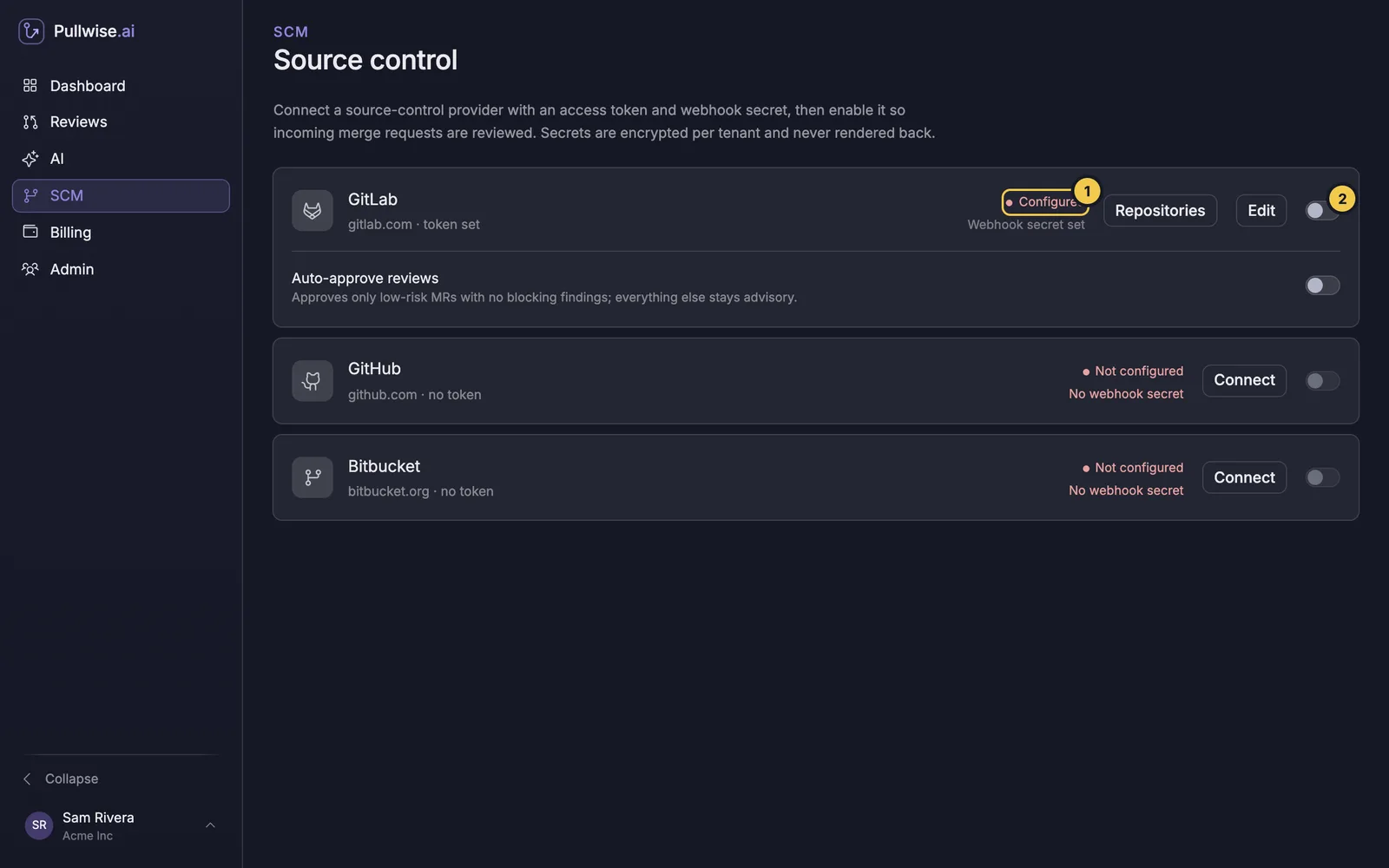
Once a platform has a token, an Auto-approve reviews row appears under it. It’s off by default. See gated auto-approve.
The Connect dialog
Select Connect on a card to open the dialog.
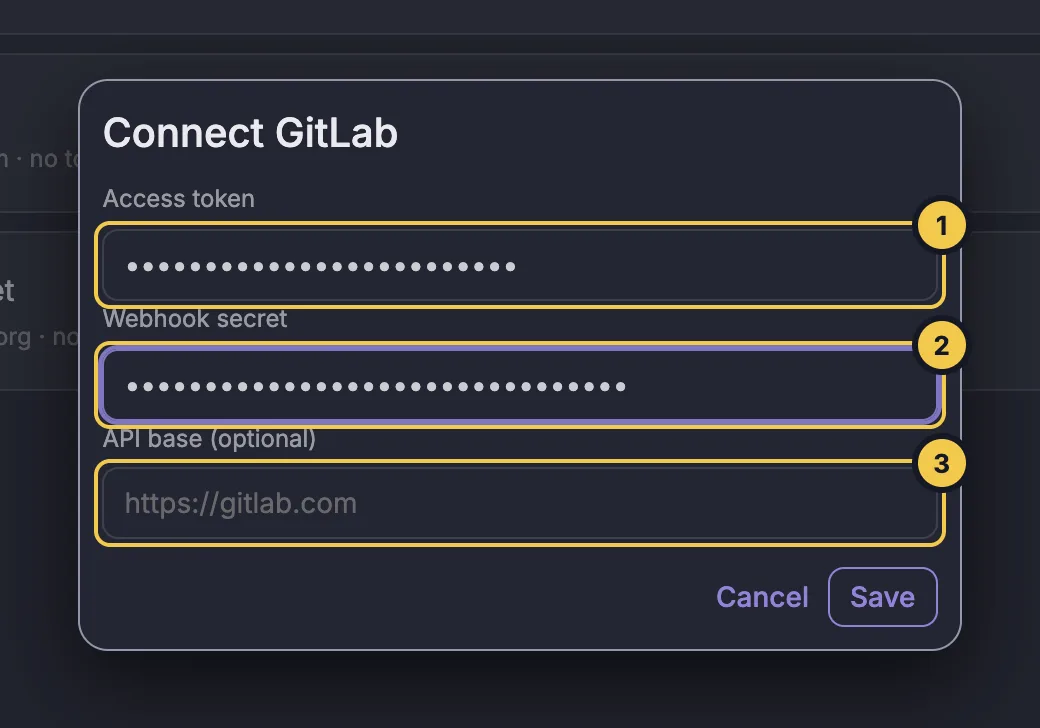
| Field | What to enter |
|---|---|
| Access token (1) | A token from your platform. Each platform guide explains which kind and which permissions. |
| Webhook secret (2) | A long random string you make up. You’ll paste the same value into the webhook. |
| API base (optional) (3) | Only for self-managed GitLab or GitHub Enterprise Server. Leave it blank for the cloud versions. |
Tokens and secrets are encrypted and never shown again after you save. When editing, leave a field blank to keep its current value.
Follow the guide for your platform
You can connect more than one platform to the same workspace. Reviews from all of them appear together in Reviews.
If something goes wrong
| Problem | What to do |
|---|---|
| The card says Configured | Switch the platform on with the switch at the right of the card. |
| You lost the webhook secret | Make a new one, save it with Edit, and update it in every webhook for that platform. |
| You can’t see SCM | Only admins can change source-control settings. |
Next
Connect GitLab, GitHub or Bitbucket. Skip the platforms you don’t use and go on to choose repositories.
Stuck? Ask the assistant, check troubleshooting or contact support.