Connect GitLab to Pullwise
Connect gitlab.com or self-managed GitLab to Pullwise with an access token and a merge request webhook, step by step with screenshots.
Works with gitlab.com and self-managed GitLab. You’ll create a token in GitLab, save it in Pullwise, then add a webhook in GitLab.
1. Create an access token in GitLab
Pick the token type that fits how you’ll roll Pullwise out:
| Token | Covers | Where to create it |
|---|---|---|
| Group access token (recommended) | Every project in the group | Group → Settings → Access tokens |
| Project access token | One project | Project → Settings → Access tokens |
| Personal access token on a bot user | Everything the user can access | User → Preferences → Access tokens |
Set:
- Role: Developer or higher. Choose Maintainer if you plan to use auto-approve, so the token can approve merge requests.
- Scopes:
api. Pullwise needs it to read merge request diffs and post comments. - Expiration date: as long as your policy allows. Set a reminder to rotate it before it expires.
Select Create and copy the token straight away. GitLab only shows it once. GitLab tokens start with glpat-.
2. Save it in Pullwise
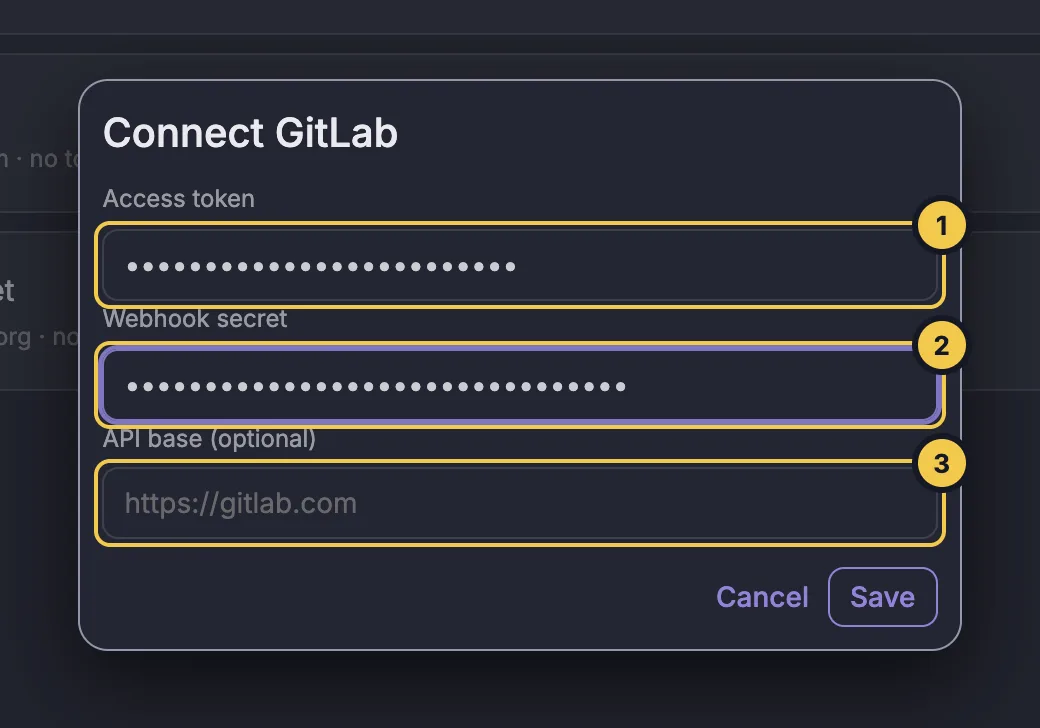
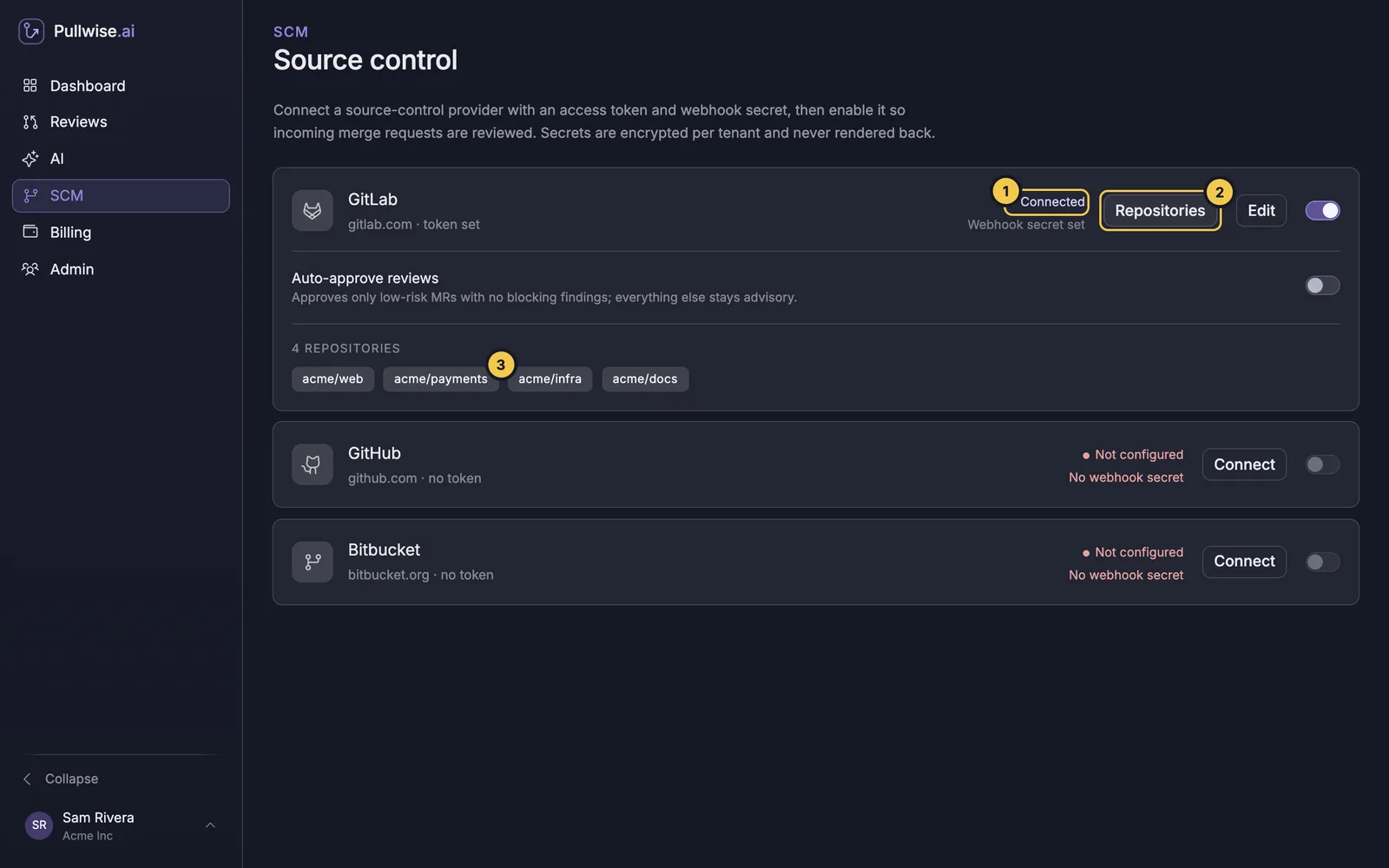
- Open SCM and select Connect on the GitLab card.
- Paste the Access token (1).
- Paste your Webhook secret (2).
- Self-managed GitLab only: set API base (3) to your instance’s API, for example
https://gitlab.example.com/api/v4. Leave it blank for gitlab.com. - Select Save.
- Switch GitLab on with the switch at the right of the card.
3. Add the webhook in GitLab
Your webhook URL includes your workspace subdomain. Type it below to fill in the URL:
https://your-subdomain.pullwise.ai/v1/webhooks/gitlabIn GitLab, open the project (or group) and go to Settings → Webhooks → Add new webhook:
- URL (1): your webhook URL from above.
- Secret token (2): your webhook secret.
- Trigger (3): tick Merge request events only. Untick Push events.
- Leave Enable SSL verification on.
- Select Add webhook.
4. Test it
On the webhook’s row in GitLab, select Test → Merge request events.
What triggers a review
A merge request being opened, reopened, or updated with new commits. Comments, labels, approvals and pipeline events are ignored.
If something goes wrong
Open the webhook in GitLab (Edit → Recent events) to see each delivery and Pullwise’s response.
| Response | Cause | Fix |
|---|---|---|
401 |
The secret token doesn’t match | Re-enter the same secret in GitLab and in Pullwise (SCM → Edit). |
404 |
Wrong workspace subdomain in the URL | Check the URL against your workspace address. |
201 with ignored |
Not a merge request event, or GitLab is switched off in Pullwise | Tick Merge request events and check the card says Connected. |
| Delivery fails or times out | Self-managed GitLab can’t reach the internet | Allow outbound HTTPS from GitLab to *.pullwise.ai. |
| Couldn’t list repositories under the card | Token expired, revoked or missing the api scope |
Create a new token and save it with Edit. |
More fixes in troubleshooting.
Next
Choose which repositories are reviewed. Also using GitHub or Bitbucket? Connect GitHub or Bitbucket first.
Stuck? Ask the assistant, check troubleshooting or contact support.