Track review history and activity
Use the Reviews and Dashboard screens to find past reviews, filter flagged merge requests, open a review's details and see activity by repository.
Every review Pullwise runs is recorded in your workspace. Use Reviews to look up individual merge requests, and the Dashboard for the bigger picture. Everyone in the workspace can see both.
The Reviews screen
Select Reviews in the sidebar to open Merge request activity.
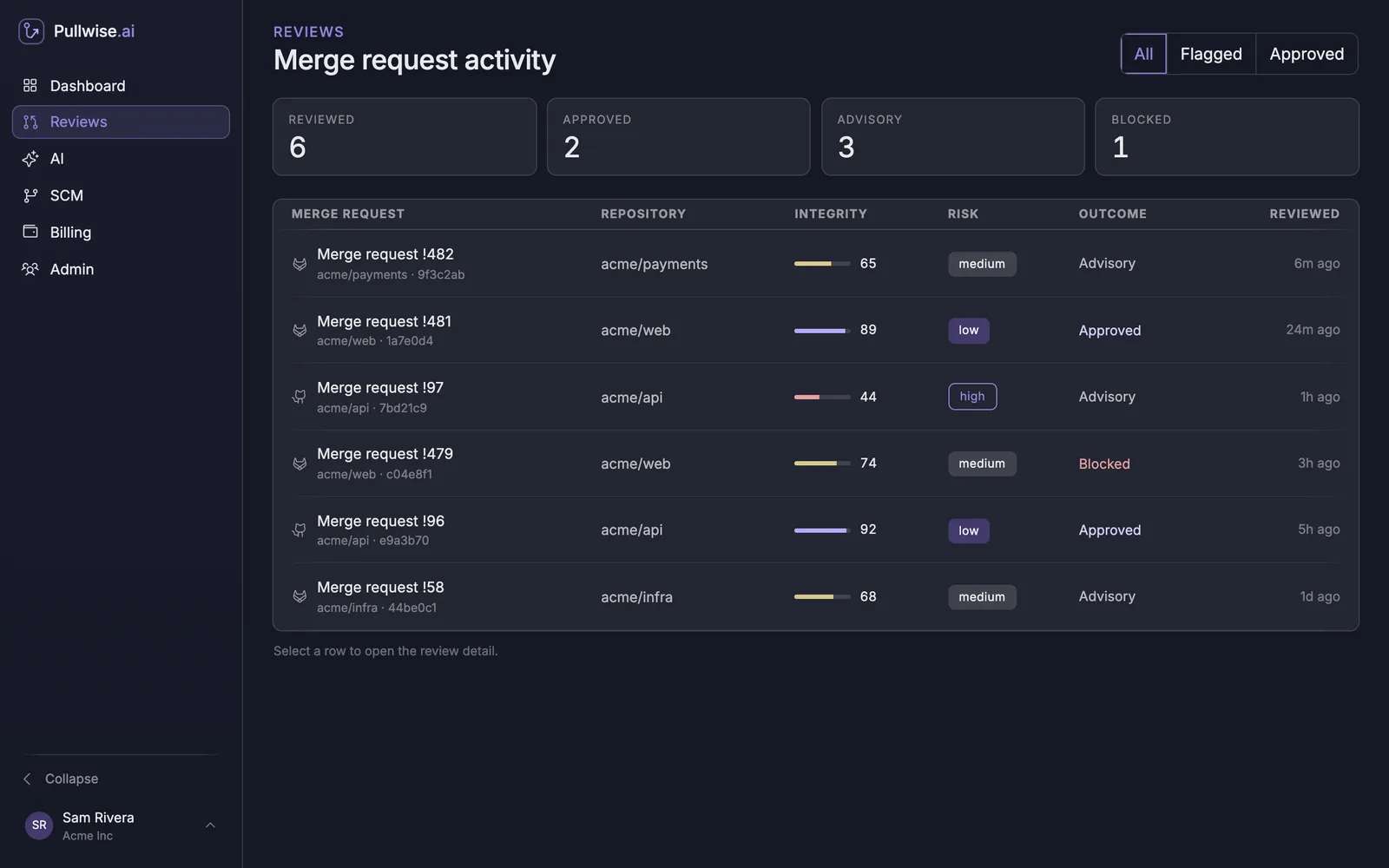
The four cards at the top count the reviews in the list by outcome. The table shows the newest first:
| Column | What it shows |
|---|---|
| Merge request | The MR number, with the repository and the commit that was reviewed. The icon shows the platform. |
| Repository | Where the merge request lives. |
| Integrity | A 0–100 score. Higher means cleaner. It comes from the risk (low starts at 92, medium at 74, high at 56) minus 3 for each finding. |
| Risk | Low, medium or high. |
| Outcome | What Pullwise did (see below). |
| Reviewed | How long ago the review ran. |
Outcomes
| Outcome | Meaning |
|---|---|
| Approved | Pullwise approved the merge request through auto-approve. |
| Advisory | Pullwise commented without approving. This is the usual outcome. |
| Blocked | The review failed and nothing was posted, for example because the AI provider timed out. Push again to retry. |
Filter the list
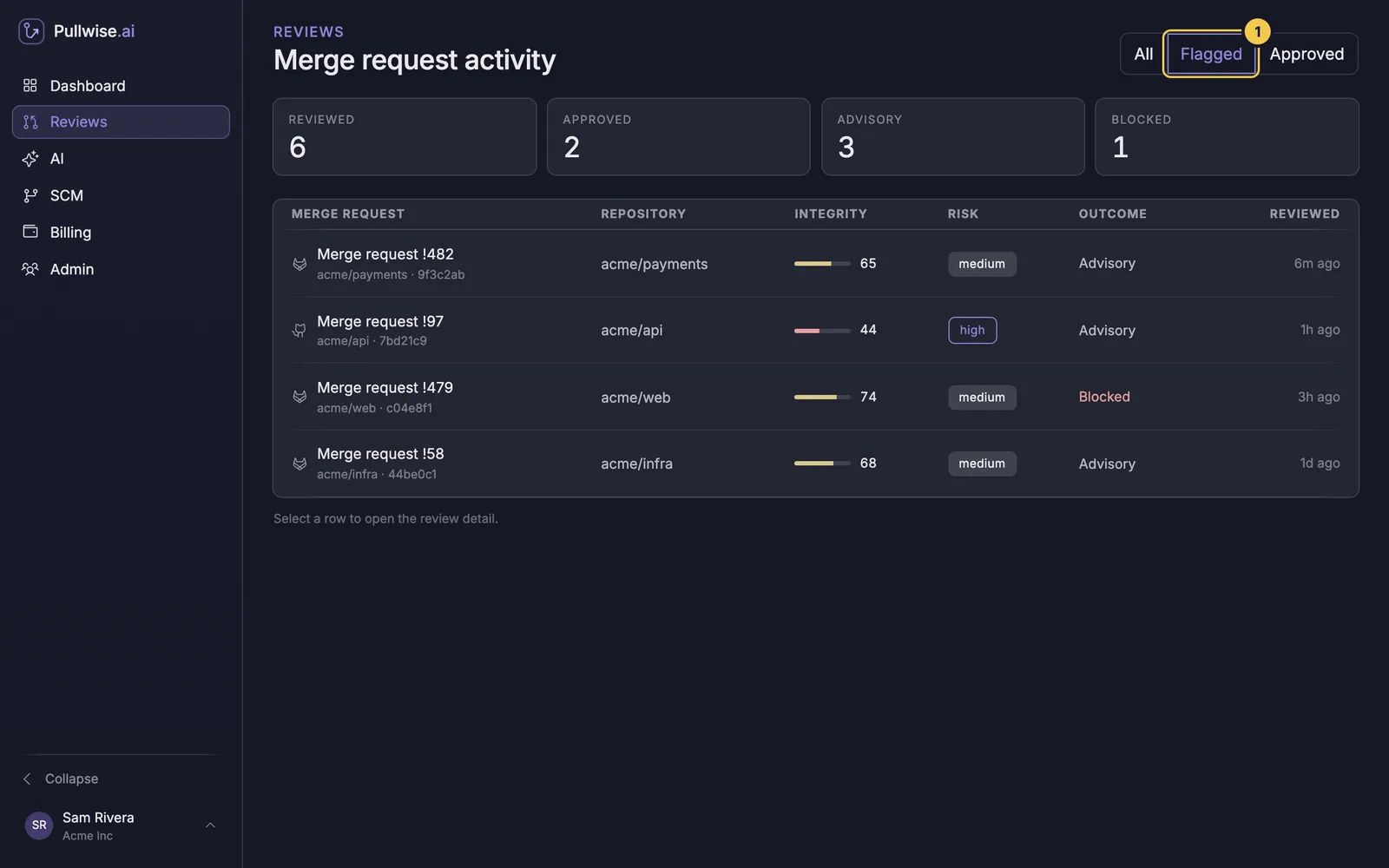
Use the buttons at the top right:
- All: every review.
- Flagged: everything that wasn’t approved. A good daily check for risky changes.
- Approved: only auto-approved merge requests, useful for auditing auto-approve.
Open a review
Select any row to see the full review.
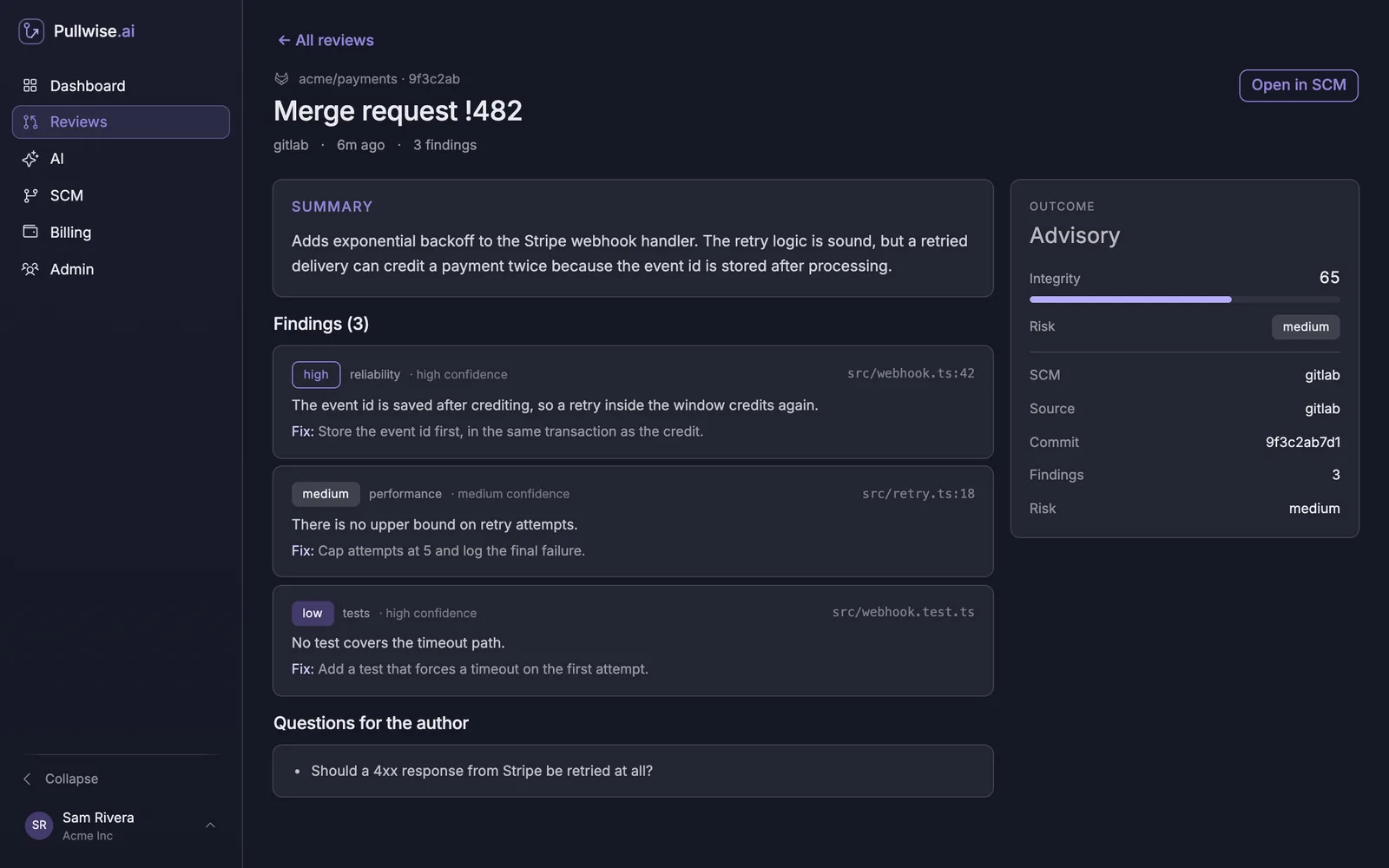
- Summary: the model’s overview of the change.
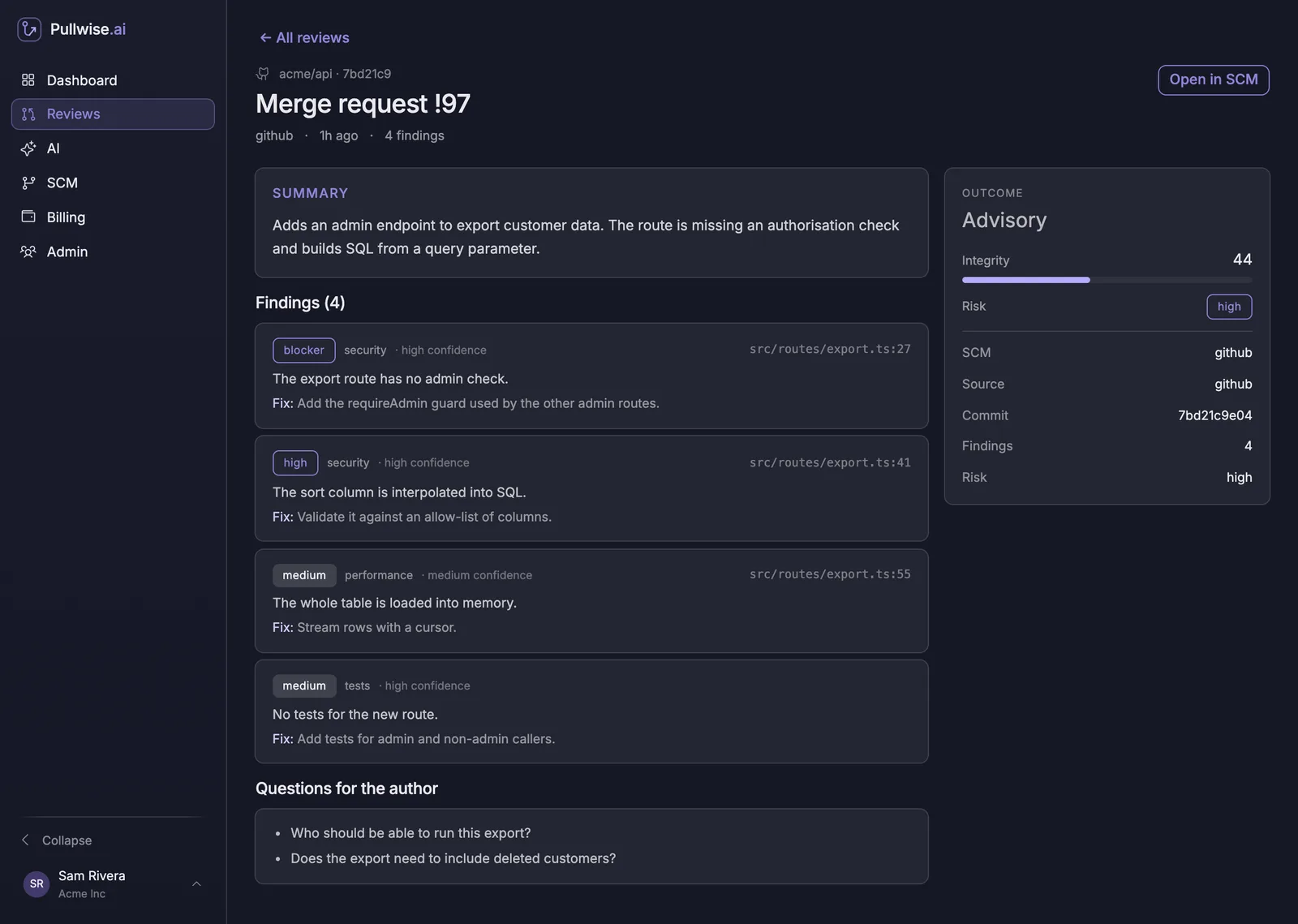
- Findings: each with its severity, category and confidence, the file and line, the issue and a Fix.
- Questions for the author.
- Outcome panel: the outcome, integrity score and risk, plus the platform (SCM), Source, Commit and number of Findings.
- Open in SCM (top right) opens the merge request on GitLab, GitHub or Bitbucket.
- ← All reviews takes you back to the list.
Here’s a high-risk review with a blocker:
The Dashboard
Select Dashboard for activity across the workspace.
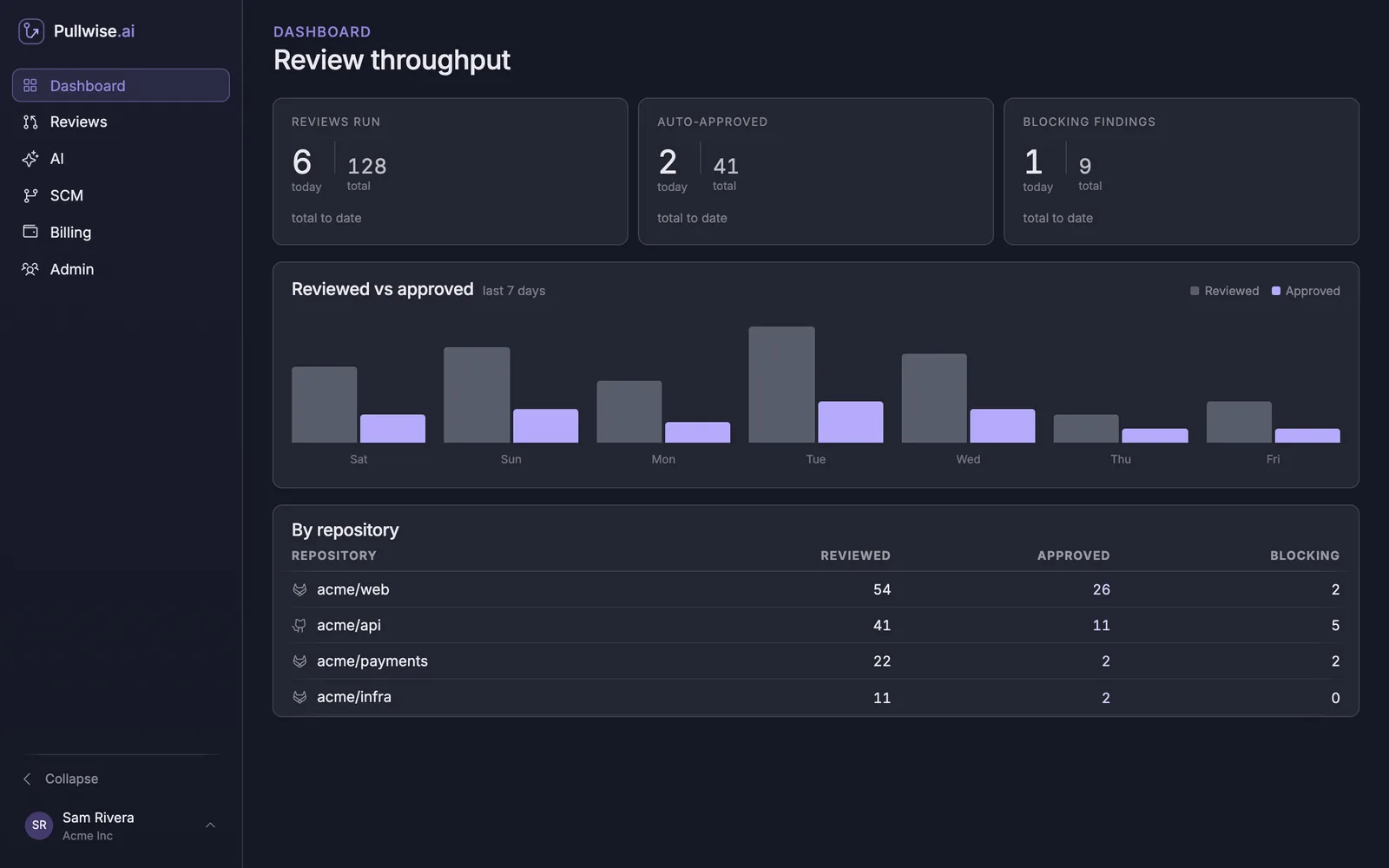
| Part | What it shows |
|---|---|
| Reviews run | Reviews today, and in total. |
| Auto-approved | Merge requests Pullwise approved today, and in total. |
| Blocking findings | Reviews where approval wasn’t recommended, or that failed, today and in total. |
| Reviewed vs approved | A bar per day for the last 7 days: reviews run, and how many were approved. |
| By repository | Reviews, approvals and blocking reviews for each repository. |
Use it to see which teams have adopted Pullwise, and to spot repositories with a lot of risky changes.
What’s stored
The history keeps each review’s repository, MR number, commit, risk, outcome, findings and summary. It doesn’t store your code or the diff. See security.
If something goes wrong
| Problem | What to do |
|---|---|
| A review is missing | Check the webhook delivered (see your first review). |
| Many Blocked reviews | Your AI provider is failing. Open AI and select Verify on the active provider. |
| The Dashboard is empty | No reviews have run yet. |
Next
Turn on gated auto-approve (optional), or skip to invite your team.
Stuck? Ask the assistant, check troubleshooting or contact support.