Buy credits and track usage
Check your Pullwise credit balance, buy credits through Stripe, and read the daily usage chart and transaction history on the Billing screen.
Credits pay for reviews on the hosted Pullwise AI model. If you bring your own key or use a self-hosted model, reviews are free on Pullwise and you can skip this guide.
How credits are counted: one credit per 1,000 tokens, rounded up. A typical review uses 5 to 15 credits. See credits and billing for details and examples.
Check your balance
Open Billing in the sidebar to see Credits & top-ups.
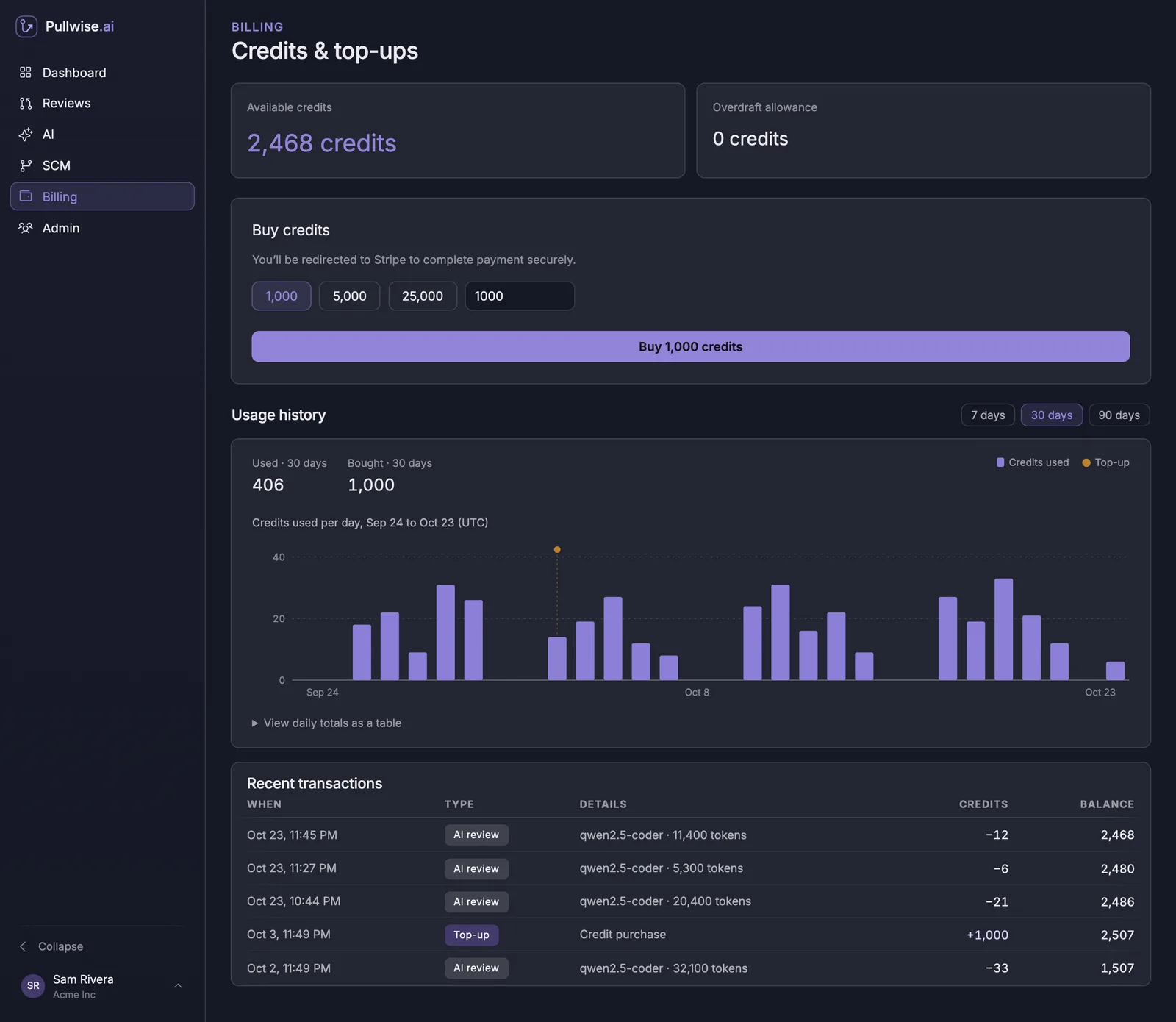
- Available credits: your current balance.
- Overdraft allowance: how far below zero your balance may go before hosted reviews pause. It’s 0 unless we’ve agreed otherwise with you.
Buy credits
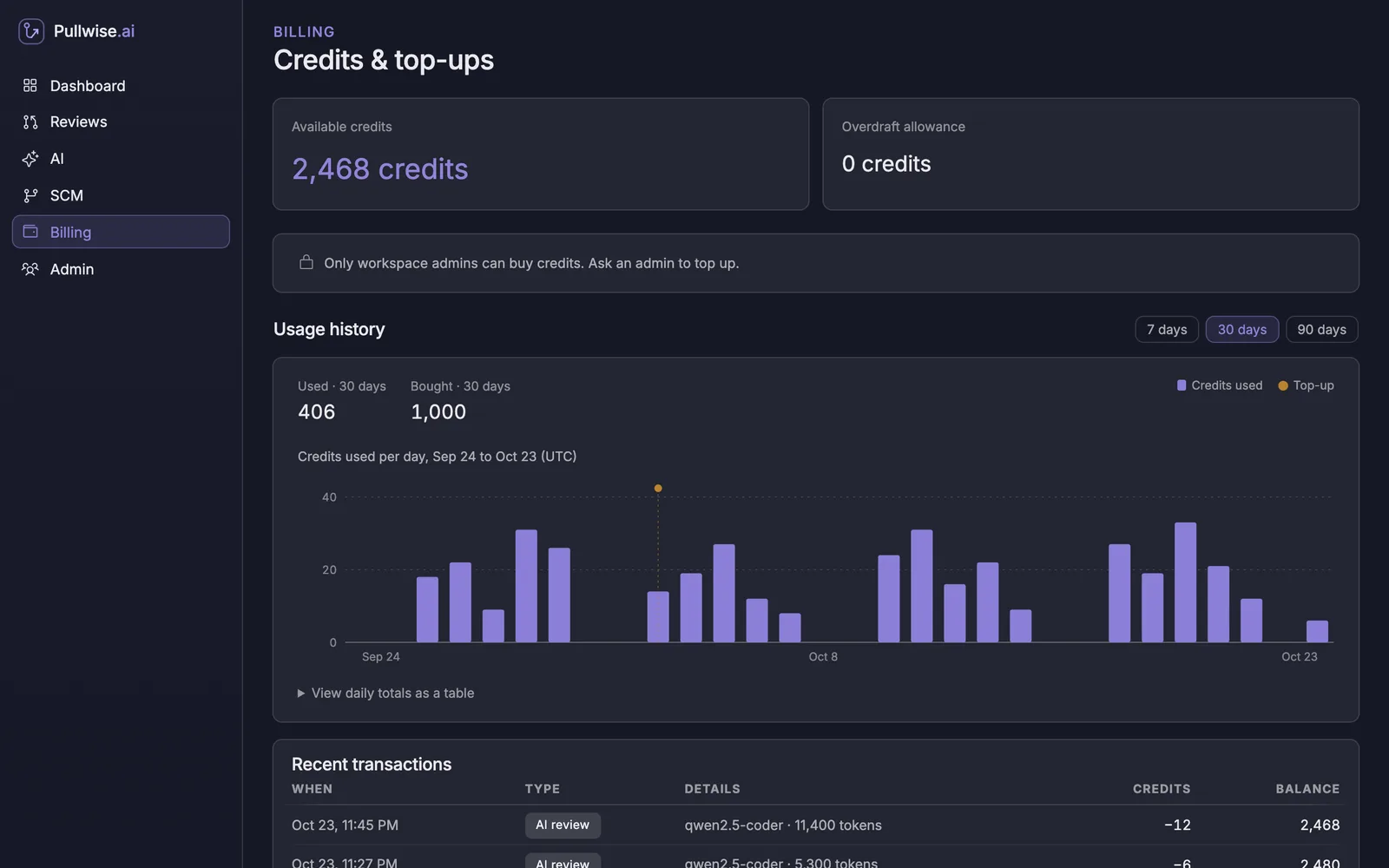
Only admins can buy credits.
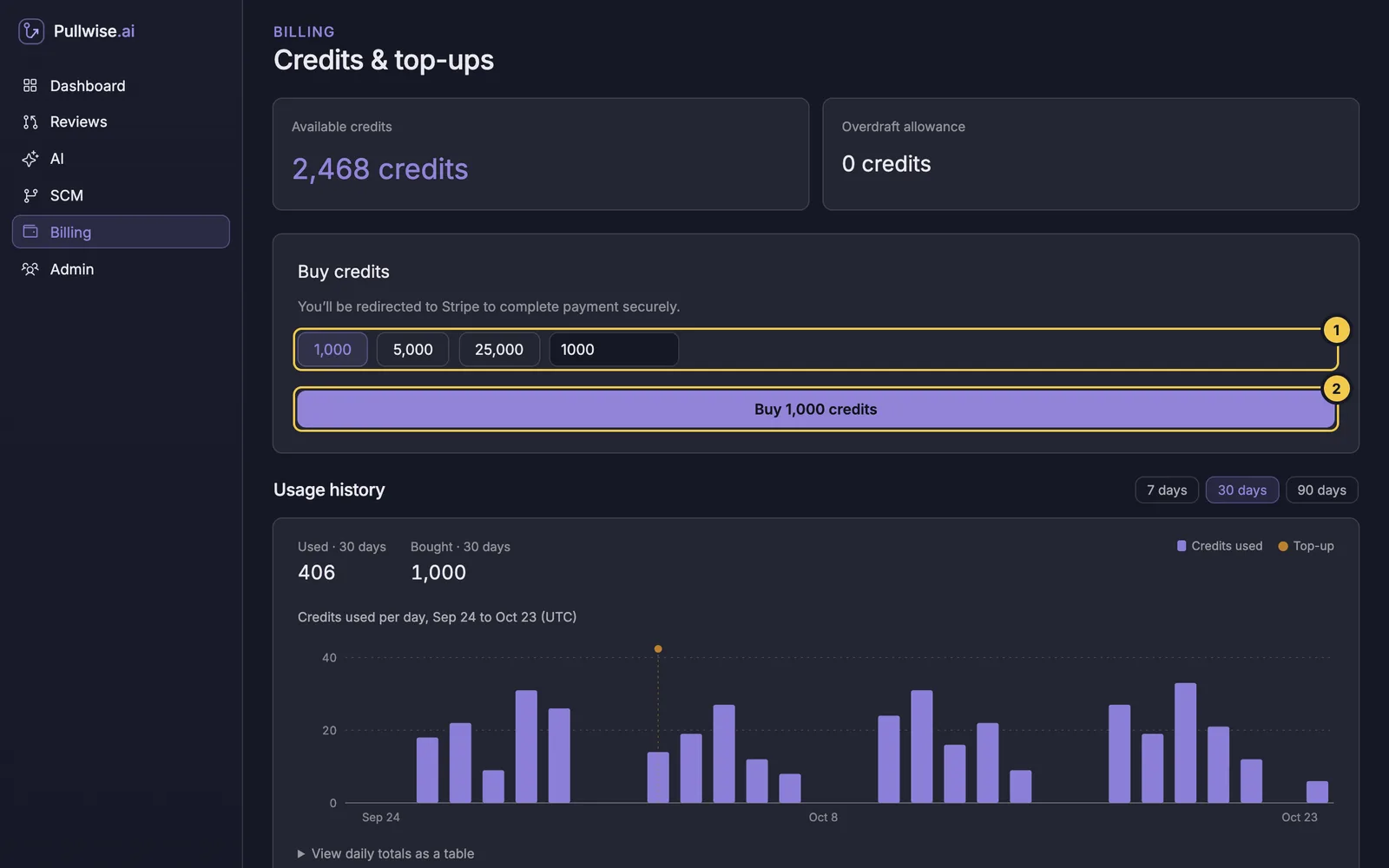
- Under Buy credits, choose a pack: 1,000, 5,000 or 25,000 (1). Or type any amount in the box next to them.
- Select Buy 1,000 credits (2). The label shows the amount you chose.
- You’re taken to a secure Stripe checkout. Pay by card.
- Stripe sends you back to Billing. The credits appear as soon as the payment goes through.
Stripe emails a receipt for each purchase. Credits don’t expire. For invoices or purchase orders, contact sales.
If you’re a reviewer
Reviewers see the balance and usage but not the buy panel:
Track usage
Usage history shows how credits are being spent.
- Choose 7 days, 30 days or 90 days at the top right.
- Used and Bought give the totals for that period.
- The chart shows credits used per day. Top-ups are marked with a dot. Days are in UTC.
- View daily totals as a table shows the same numbers as a table, which is handy for spreadsheets.
Recent transactions lists each change to your balance:
| Column | What it shows |
|---|---|
| When | Date and time. |
| Type | AI review for a review, Top-up for a purchase. |
| Details | The model and the tokens used, or Credit purchase. |
| Credits | The change, such as −12 or +1,000. |
| Balance | Your balance after the change. |
When credits run out
When your balance reaches the limit, hosted reviews pause. Pullwise posts nothing on new merge requests until you top up. Reviews aren’t queued: push again after topping up to get a review.
To avoid gaps:
- Top up before you run low. The chart helps you see how much you use in a typical week.
- Or switch to your own key in AI. Reviews on your own key never use credits.
If something goes wrong
| Problem | What to do |
|---|---|
| You don’t see Buy credits | Only admins can buy. Ask an admin. |
| Paid, but the balance didn’t change | Wait a minute and refresh. If it still hasn’t changed, contact support with the Stripe receipt. |
| Checkout was cancelled | Nothing was charged. Try again when you’re ready. |
Next
Stuck? Ask the assistant, check troubleshooting or contact support.