Create your Pullwise workspace
Register for Pullwise, choose a workspace name and subdomain, sign up with email or Google, and verify your email address.
A workspace is your company’s private space in Pullwise. It holds your AI settings, source-control connections, members and review history. The person who creates it becomes its first admin.
This guide takes about three minutes. At the end you’ll have a workspace at your own address, such as acme.pullwise.ai.
Open the sign-up page
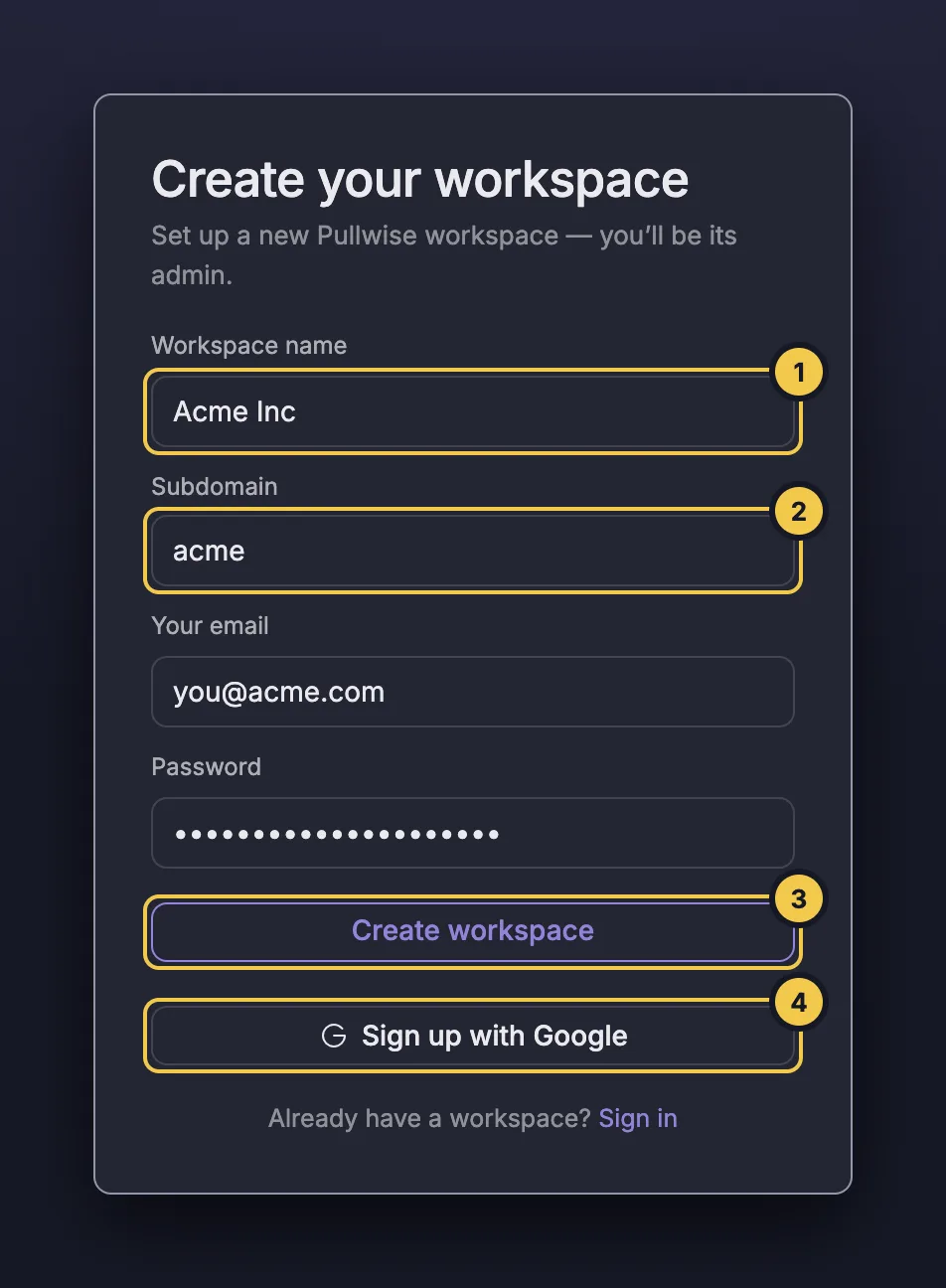
Go to app.pullwise.ai. You’ll see Create your workspace.
Already have a workspace? Select Sign in at the bottom instead, or go straight to your workspace address.
Fill in the form
- Workspace name (1). Your company or team name, such as
Acme Inc. Your team sees it in the portal and on the sign-in screen. You can use spaces and capitals. - Subdomain (2). The start of your workspace address.
acmegives youhttps://acme.pullwise.ai. - Your email and Password. Use your work email. The password needs at least 8 characters.
Subdomain rules
- Lowercase letters, numbers and hyphens only, up to 63 characters.
- It can’t start or end with a hyphen.
- Some names are reserved and can’t be used, including
www,app,api,admin,auth,billing,statusanddefault. - Each subdomain can belong to only one workspace.
Create the workspace
Choose one of two ways to sign up.
With email and password
Select Create workspace (3). You’ll see Check your email.
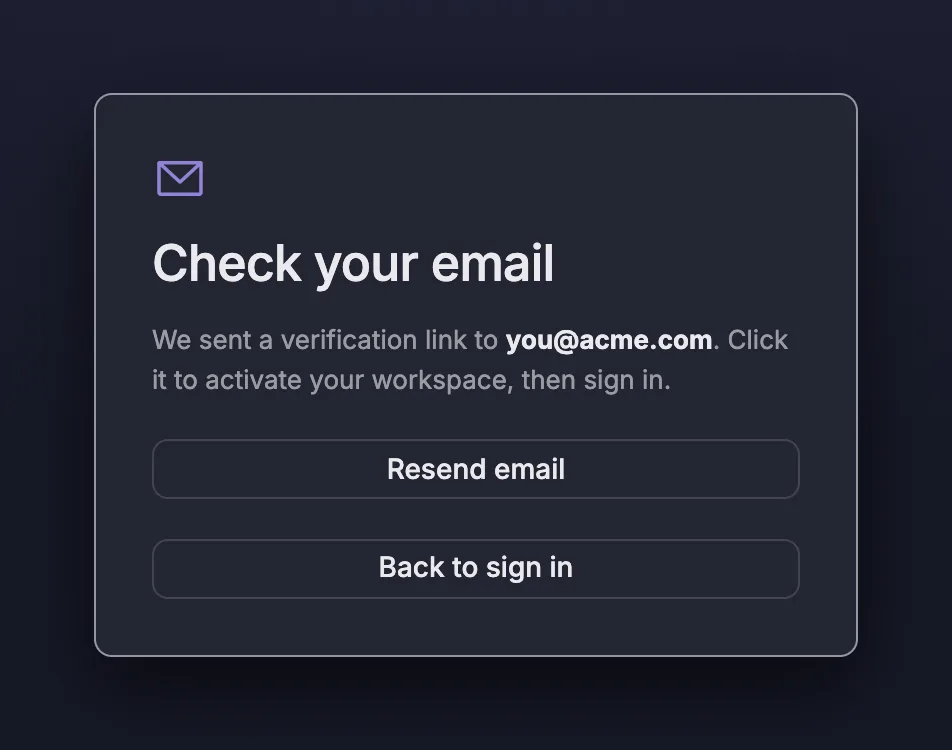
Open the email from Pullwise and select Verify email. The link expires after 24 hours. Once verified, sign in at your workspace address.
With Google
Fill in the Workspace name and Subdomain first, then select Sign up with Google (4) and choose your Google account. Google has already confirmed your email, so there’s no verification step and you go straight into the portal.
If something goes wrong
| Problem | What to do |
|---|---|
| The subdomain is rejected | It’s taken, reserved or breaks the rules above. Try a variation such as acme-eng. |
| No verification email | Check spam and promotions folders. The Check your email screen has a Resend button. |
| The link says it has expired | Links last 24 hours. Go to your workspace address and use Resend verification email on the sign-in screen. |
| Sign up with Google does nothing | Fill in the workspace name and subdomain first. The button is disabled until you do. |
Next
Stuck? Ask the assistant, check troubleshooting or contact support.