Invite your team and control sign-in
Invite members to your Pullwise workspace, set admin or reviewer roles, disable members, choose who can join, and use your own Google sign-in client.
Pullwise doesn’t charge per seat, so invite everyone who writes or reviews code. Reviews appear on merge requests whether or not people have a portal account. The portal is for seeing history, usage and settings.
Roles
| Admin | Reviewer | |
|---|---|---|
| See Dashboard, Reviews and Billing | ✓ | ✓ |
| Change AI and SCM settings | ✓ | |
| Manage members and sign-in settings | ✓ | |
| Buy credits | ✓ |
The members list
Open Admin in the sidebar to see Members & access.
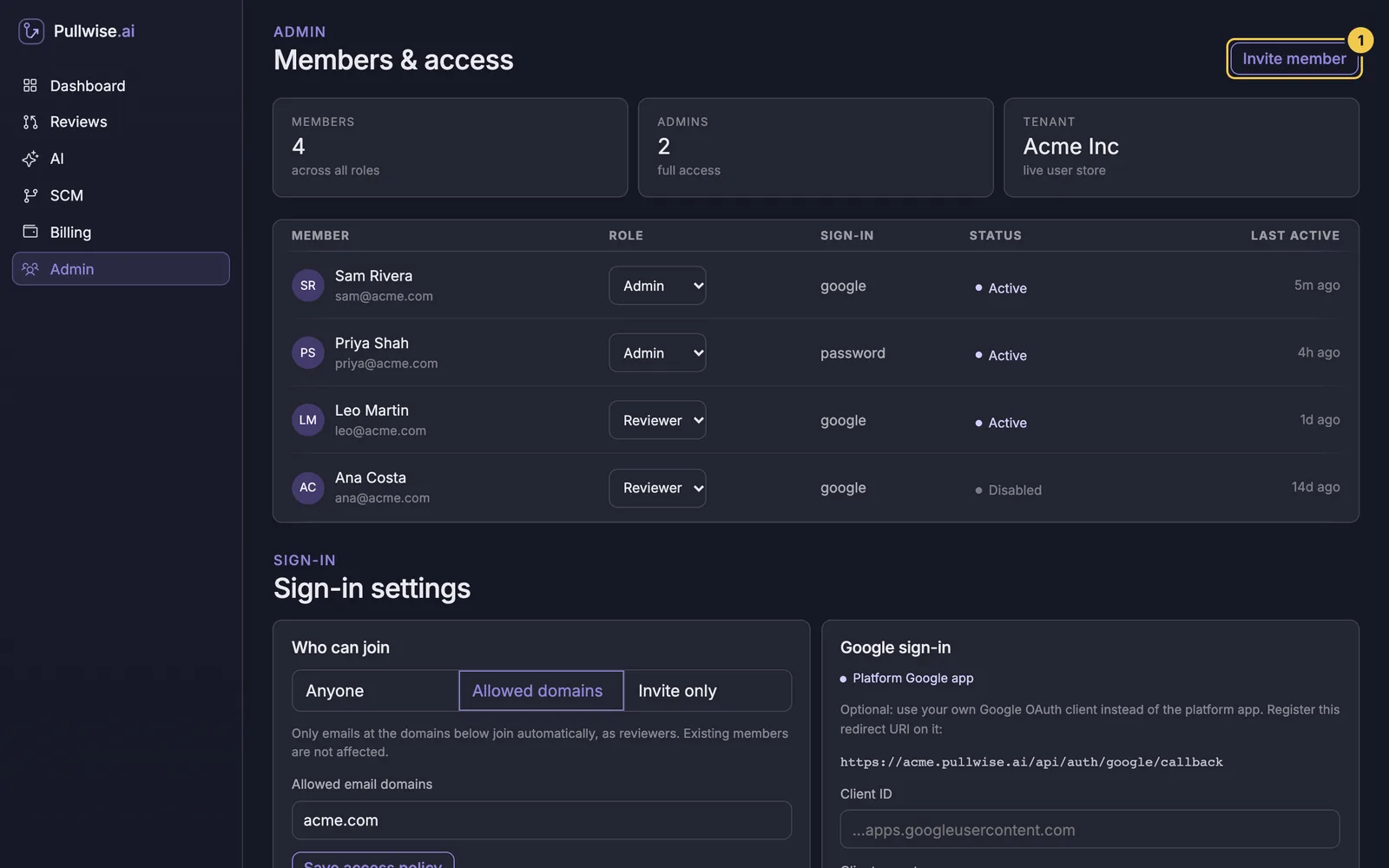
The cards count your Members and Admins. The table shows each member’s Role, how they sign in (google or password), their Status and when they were last active.
Invite a member
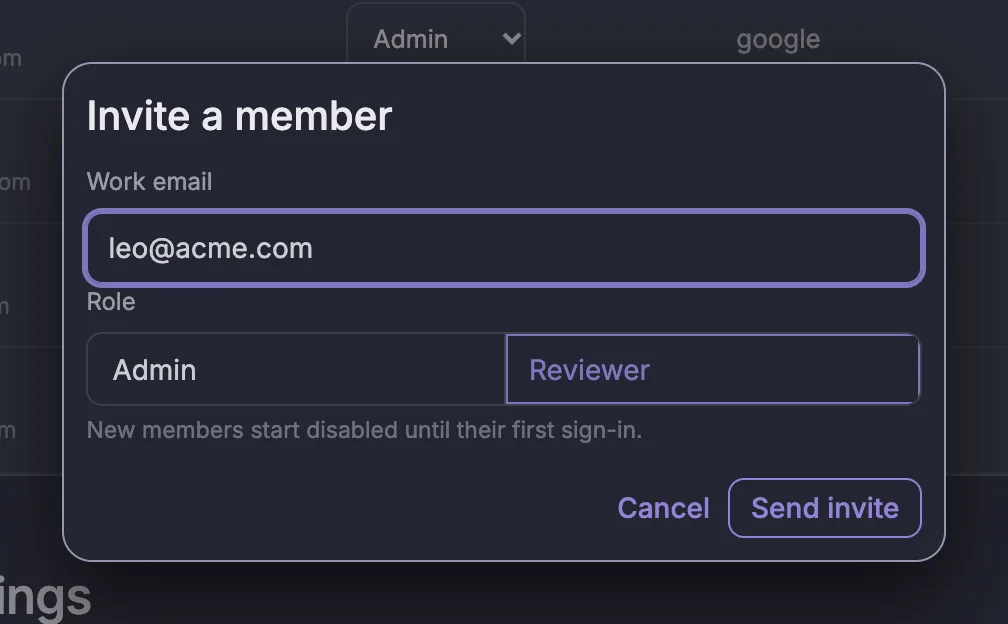
- Select Invite member (1).
- Enter their Work email.
- Choose a Role: Admin or Reviewer.
- Select Send invite.
Change a role
Use the Role menu on the member’s row to switch between Admin and Reviewer. It takes effect straight away.
Disable or re-enable a member
The Status on each row is also a button:
- Select Active to disable the member. They can’t sign in any more, but their history is kept.
- Select Disabled to let them sign in again.
Disable people when they leave the company. If you also gave them access to your source-control platform, remove that there too.
Choose who can join
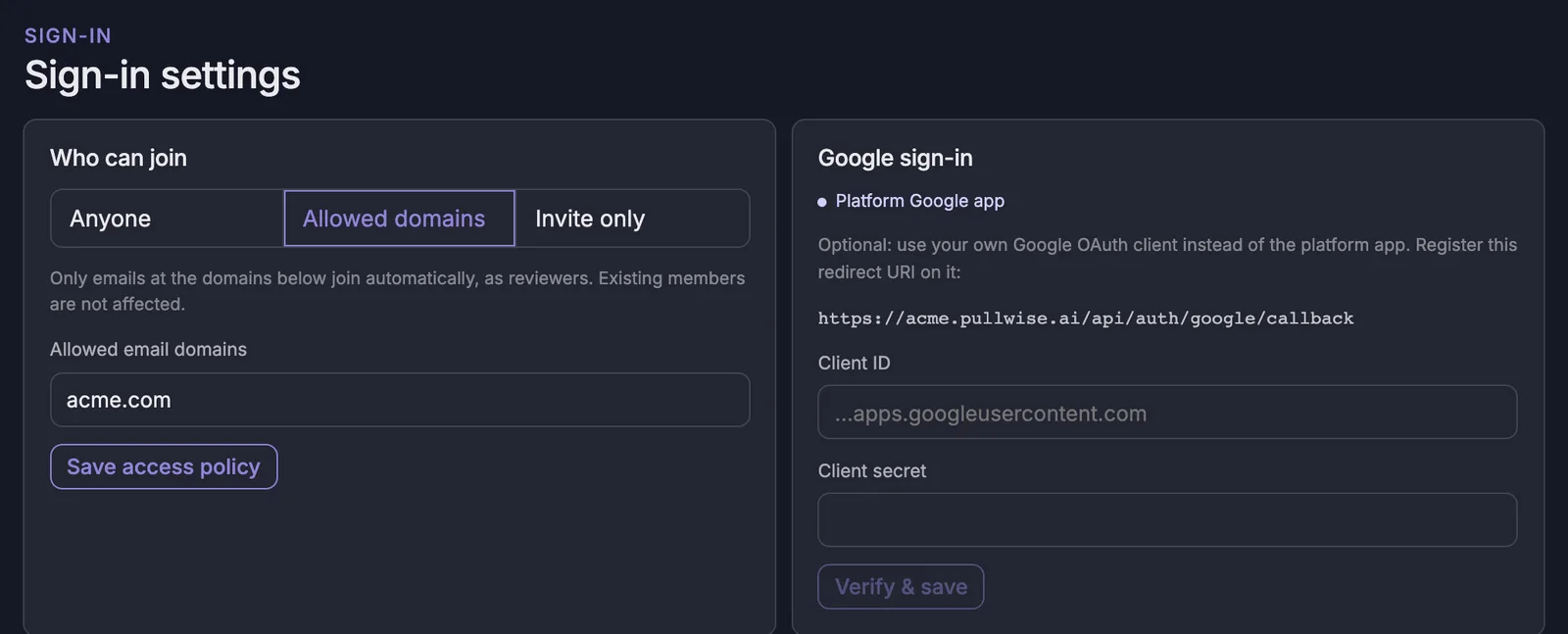
Scroll down to Sign-in settings. Under Who can join, choose a policy for people signing in with Google:
| Policy | Who can join |
|---|---|
| Anyone | Anyone who signs in with Google joins as a reviewer. |
| Allowed domains | Only people with an email at the domains you list join automatically, as reviewers. |
| Invite only | Only people an admin has invited can sign in. |
For Allowed domains, list your domains under Allowed email domains, for example acme.com. Then select Save access policy. Changing the policy doesn’t affect existing members.
Use your own Google sign-in (optional)
By default, Google sign-in uses Pullwise’s Google app (Platform Google app). You can use your own Google OAuth client instead. The consent screen then shows your company’s name, and your Google Workspace admin controls apply.
- In the Google Cloud console, create an OAuth client ID of type Web application.
- Add the redirect URI shown in the Google sign-in panel, for example
https://acme.pullwise.ai/api/auth/google/callback, as an authorised redirect URI. - Copy the Client ID and Client secret into the panel.
- Select Verify & save. Pullwise checks the details with Google before saving them.
Your own client only works on your workspace address.
If something goes wrong
| Problem | What to do |
|---|---|
| An invited person can’t sign in | They must use Continue with Google with exactly the invited email address, on your workspace address. |
| Someone outside the company joined | Disable them, then change Who can join to Allowed domains or Invite only. |
| Verify & save fails | Check the redirect URI in Google matches the one shown exactly, and that the client type is Web application. |
| You removed your own admin role | Ask another admin to restore it, or contact support. |
Next
Stuck? Ask the assistant, check troubleshooting or contact support.