Sign in and find your way around the portal
Sign in to your Pullwise workspace, and learn what each part of the portal does, from Dashboard and Reviews to AI, SCM, Billing and Admin.
Sign in
Go to your workspace address, such as https://acme.pullwise.ai. The sign-in screen names the workspace, so you know you’re in the right place.
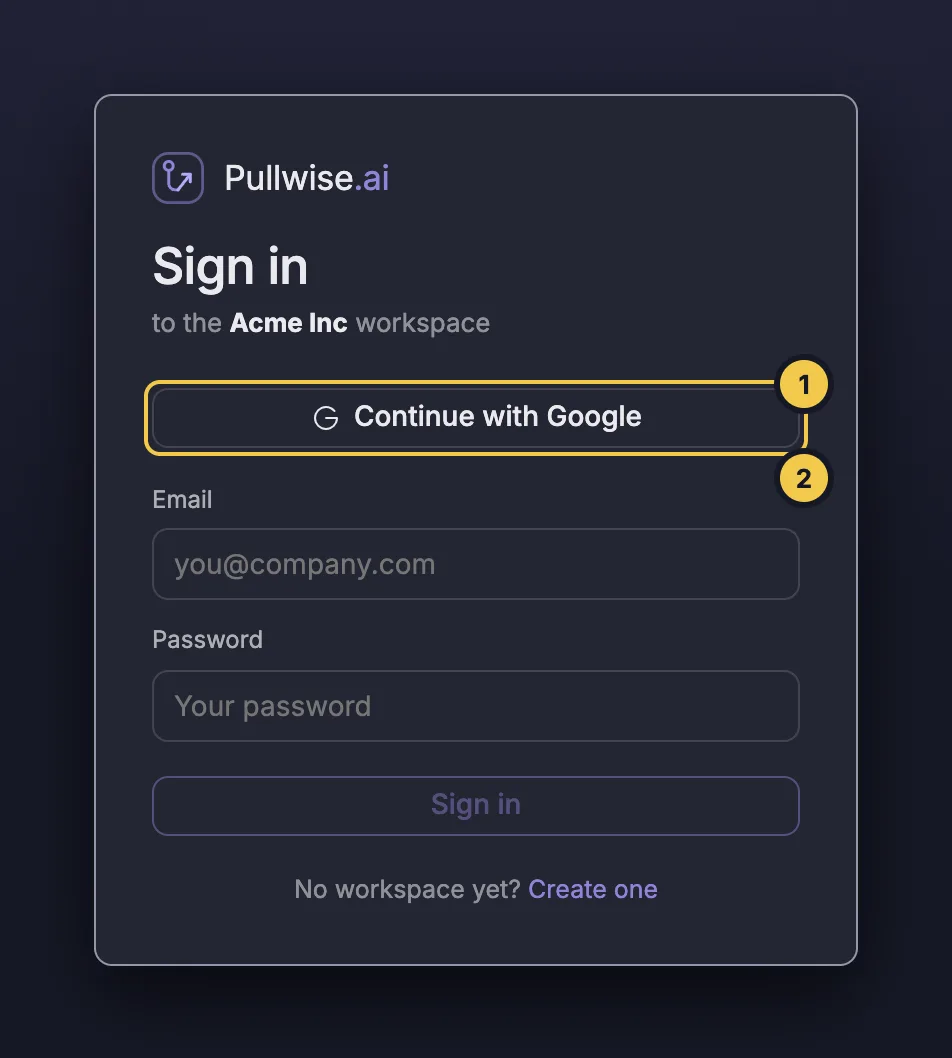
- Continue with Google (1) if your account uses Google.
- Otherwise enter your Email and Password (2) and select Sign in.
You stay signed in for 8 hours, then you’ll need to sign in again.
The portal at a glance
After signing in you land on the Dashboard. The sidebar on the left takes you to each part of the portal.
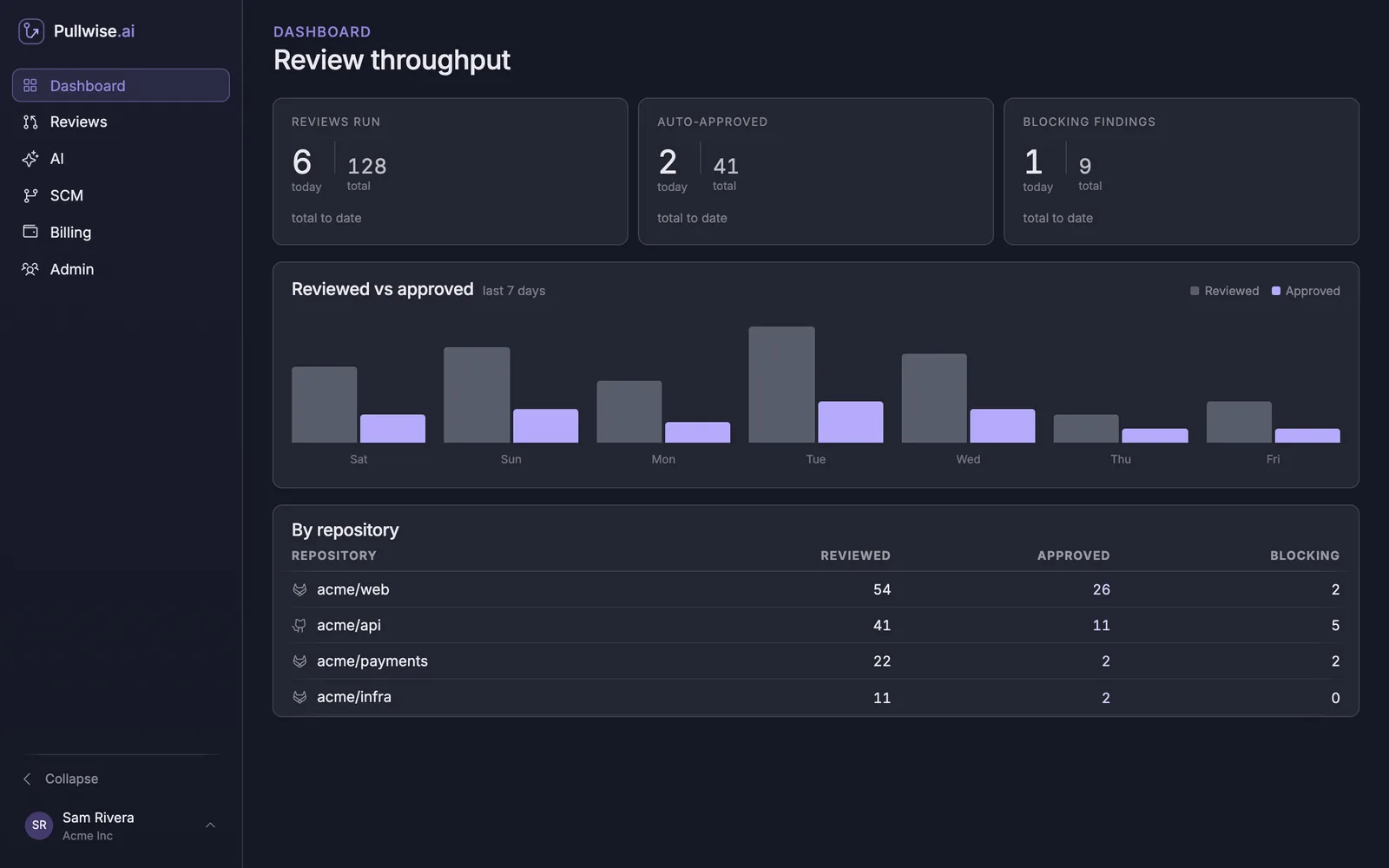
| Section | What it’s for | Who uses it |
|---|---|---|
| Dashboard | Reviews run, auto-approvals and blocking findings, today and in total. A reviewed vs approved chart and a per-repository table. | Everyone |
| Reviews | Every review Pullwise has run, with risk, findings and outcome. Open any review for the details. | Everyone |
| AI | Choose and set up the AI model that runs reviews. | Admins |
| SCM | Connect GitLab, GitHub or Bitbucket, see repositories and turn on auto-approve. | Admins |
| Billing | Credit balance, buying credits and usage history. | Everyone can view. Admins buy. |
| Admin | Members, roles and sign-in settings. | Admins |
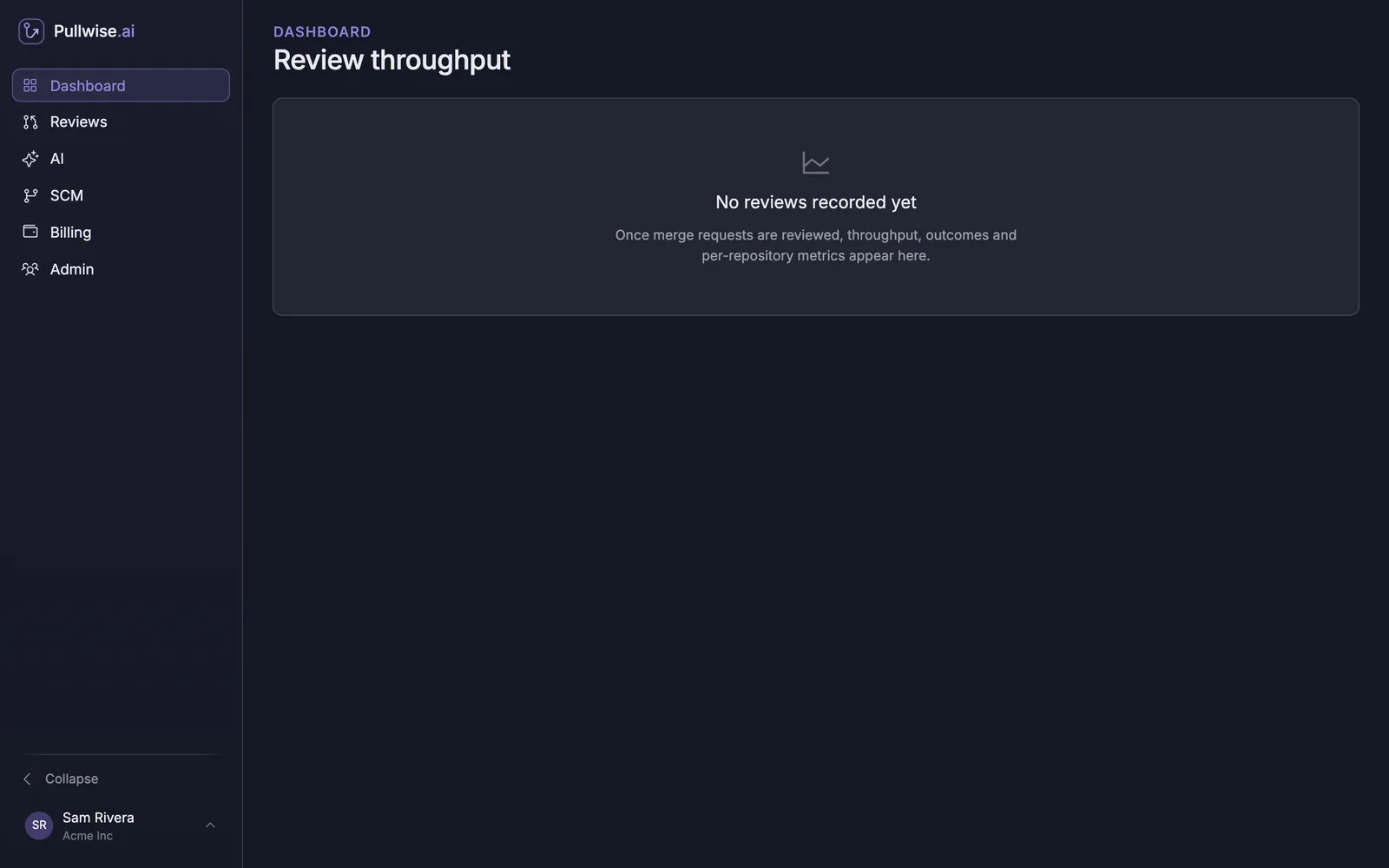
A new workspace has nothing to show yet:
Your account menu
Select your name at the bottom of the sidebar to open the account menu.
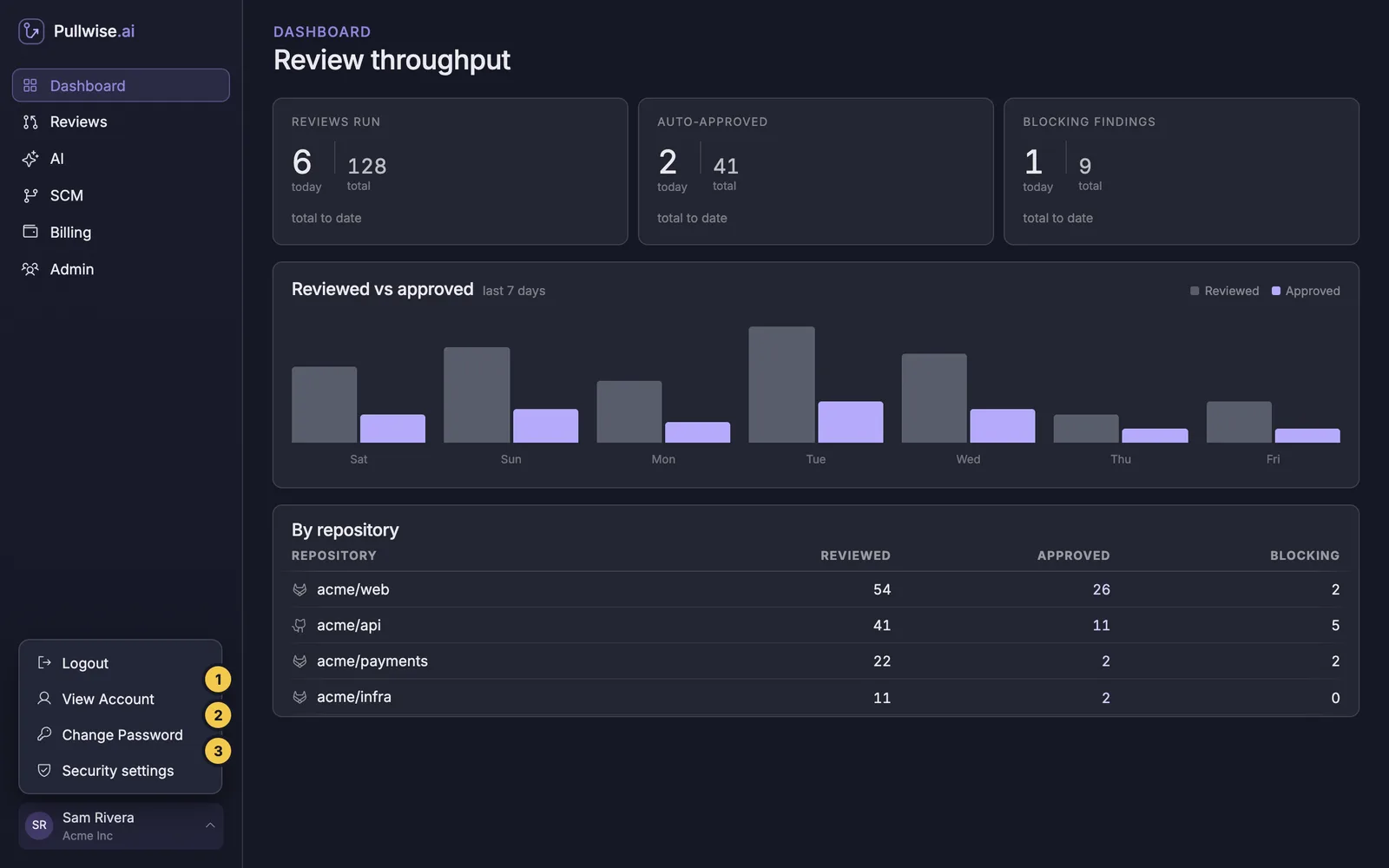
There’s more on this in manage your account. Use Collapse above your name to shrink the sidebar to icons, which gives you more room on smaller screens.
Set-up checklist
You need three things for your first review. The next guides cover each one:
- An AI model, set up in AI.
- A source-control connection, set up in SCM.
- A webhook on each repository you want reviewed.
If something goes wrong
| Problem | What to do |
|---|---|
| Invalid email or password | Check the workspace address. If you signed up with Google, use Continue with Google. |
| “Email not verified” | Use Resend verification email on the sign-in screen, then open the new link. |
| Forgotten password | There’s no self-service reset yet. Ask a workspace admin, or contact support from the email address on your account. |
| You can’t see AI, SCM or Admin settings | Those are for admins. Ask an admin to change your role. |
Next
Stuck? Ask the assistant, check troubleshooting or contact support.